
Applies to: Workforce · Premium · LawBillity
Every code that tracks accruals keeps a running balance per user. The Balances tab shows what each person has available, and behind every number there is a dated ledger of what was added, what was deducted, and by whom. It is also where you add hours manually — for Manual codes, or to correct a mistake.
Getting There
Go to Entries > Time Off and click the Balances tab. Pick a user in the User dropdown. The table lists every code assigned to that user with Paid/Unpaid, Accrual Type, Hours Available, and whether it is Use it or Lose it.
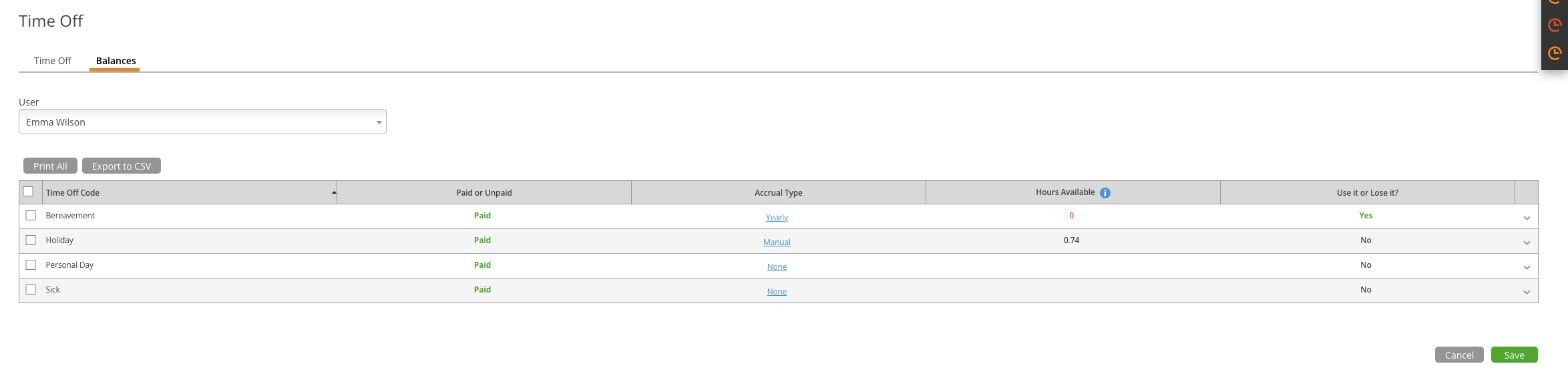
The Balances tab for one user.
Reading the Ledger
Click the arrow at the right end of a row to expand it. Every line is one event — a request deducted, a rejection that gave hours back, a manual top-up — with a timestamp, a description of who did it and why, and the running balance after it.
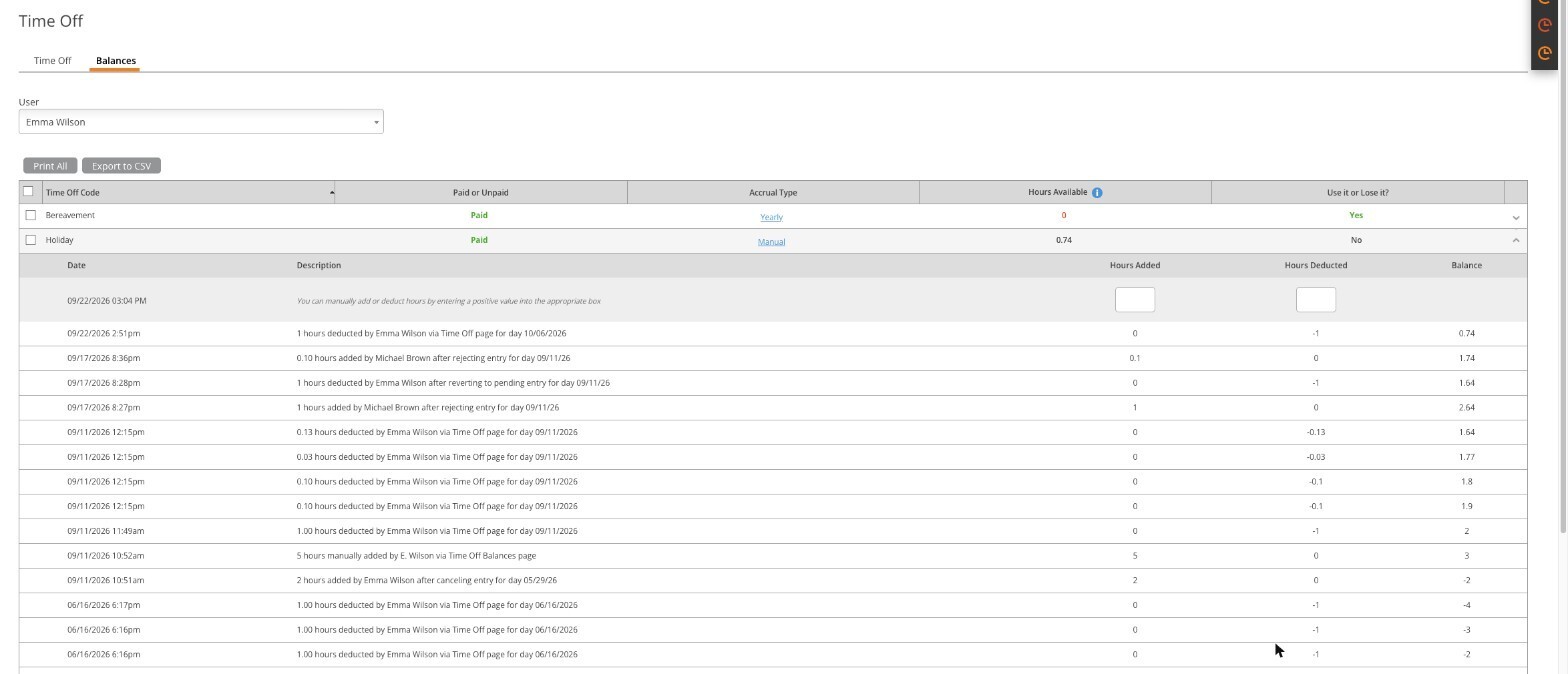
An expanded balance: manual adjustment boxes at the top, then the audit trail.
A few things the ledger makes clear:
- Hours are deducted the moment a request is saved, not when it is approved.
- Rejecting or cancelling a request returns the hours automatically, and the ledger records it.
- Manual changes name the admin who made them, so there is always an audit trail.
Adjusting a Balance by Hand
- Expand the code's row.
- In the top line, type a positive number in Hours Added to grant hours, or in Hours Deducted to remove them.
- Click Save at the bottom of the page.
Exporting
Print All and Export to CSV produce a copy of the selected user's balances. The link in the Accrual Type column opens the firm-wide accrual settings for that code — handy if you spot a rule that needs changing while you are here.
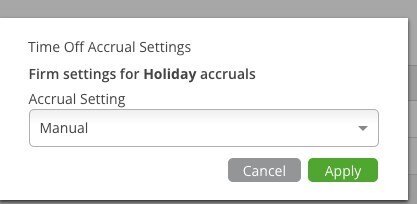
Clicking the Accrual Type link opens the same firm-wide accrual dialog.
Next Steps
Users can see their own balance inline when they request time off — the code dropdown shows "Holiday - Paid (1.74 Hours Available)". See "How to Request Time Off". To change how hours are earned, see "Setting Up Time Off Accrual Policies".