
Applies to: Workforce · Premium · LawBillity
When a user submits time off, admins and managers are notified and the request waits as Pending. You can act on it from the Time Off list, or approve it in bulk with the user's regular hours on the Approvals page. This guide covers both, plus entering time off on someone's behalf.
Reviewing Requests on the Time Off Page
Go to Entries > Time Off. With All selected you see every request across the users you manage, with its status and who acted on it. Tick Show Canceled Requests to include withdrawn ones, and use Date range or Find to narrow the list.
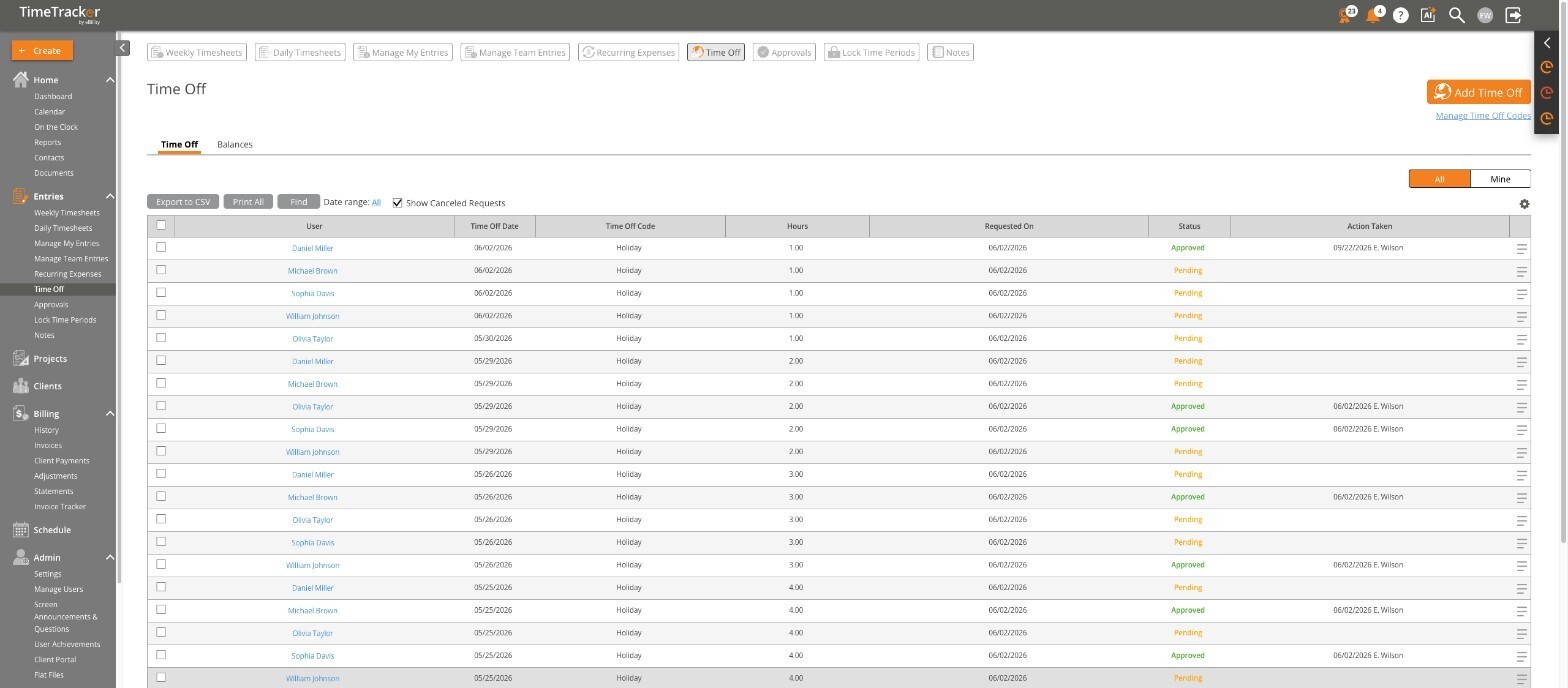
The Time Off list with pending and approved requests.
Approving or Rejecting
For a single request, hover over its row and click the menu at the right end, then Approve Entry (or Submit Entry if your firm submits before approving). For several at once, tick their checkboxes and use the Submit, Approve, and Reject buttons below the list.

The row menu on a pending request. The row above shows an approved request with the approver recorded in Action Taken.

Bulk Submit / Approve / Reject buttons below the list, with the status rules.
After approval the status turns green and the Action Taken column records the date and your name. Rejected hours go straight back to the user's balance. The user is notified in the web app and/or by email, depending on the firm's notification settings.
Approving Time Off with Regular Hours
On Entries > Approvals, each user's week is split into Regular, Paid Time Off, and Unpaid Time Off bars. Orange is pending, green is approved. Clicking Approve All for a user approves everything pending in the period, time off included. Paid Time Off is included in the user's totals; Unpaid Time Off is not.
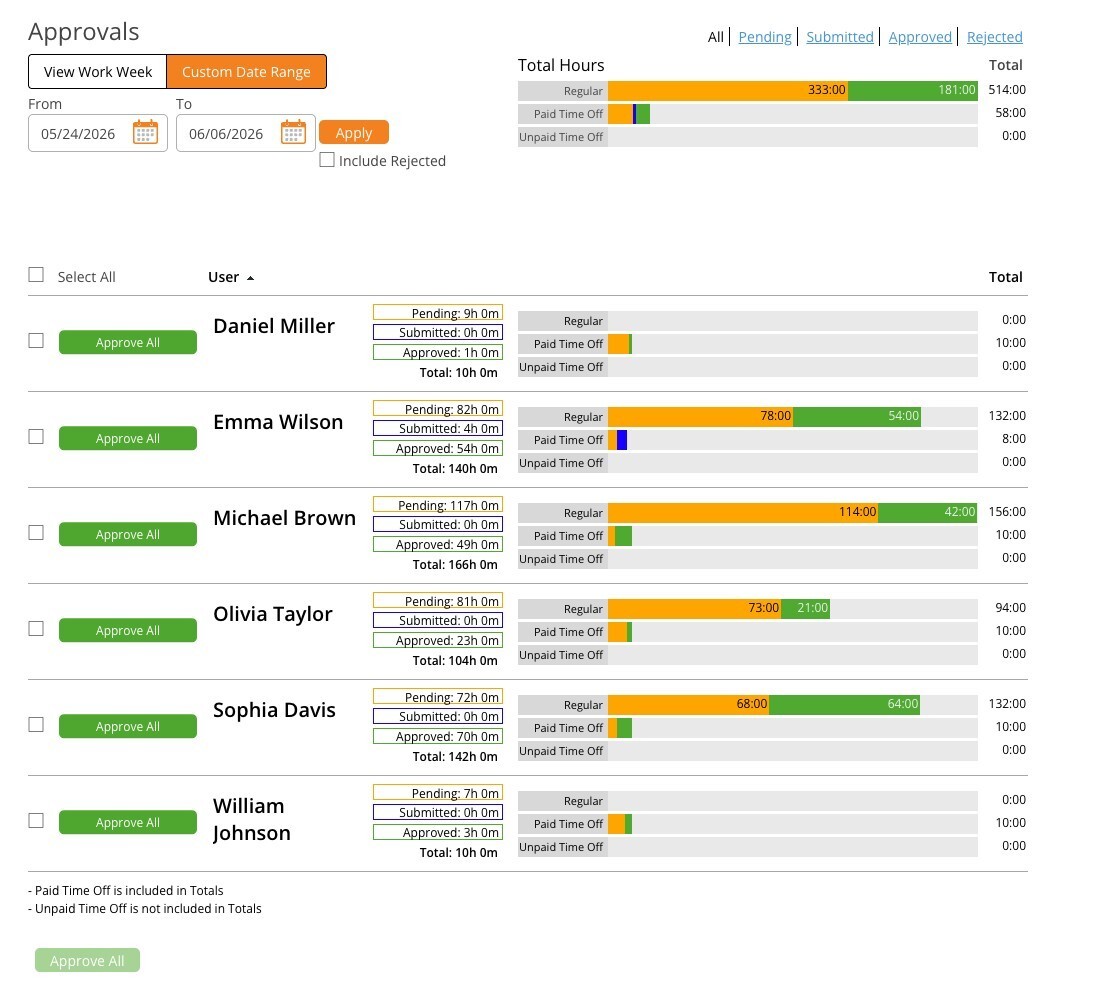
The Approvals page showing time off alongside regular hours.
Entering Time Off for Someone Else
If a user is already out, or you are entering a firm-wide holiday, you can create the request for them:
- Click Add Time Off.
- Tick the users it applies to, or Select all users for a firm-wide day, and click Next.
- Fill in the code, dates, hours, and description exactly as a user would, then Save.
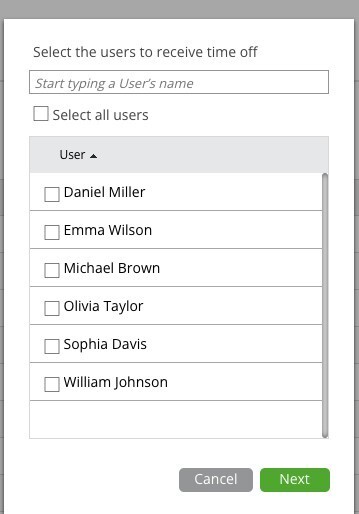
Step 1 for admins and managers: choose who the time off is for.
Tips
- The Balances tab shows what each user has left and the full history — see "Managing Time Off Balances".
- If you are away, set a delegate so someone else can approve in the meantime; both of you can be notified when a delegate is set (Admin > Settings > Notifications > Timesheets).
- Managers only see requests from users they have access to.
Next Steps
Who gets notified when a request is submitted, approved, or rejected is set under Admin > Settings > Notifications — see "Configuring Firm Notifications".