
Applies to: Workforce · Premium · LawBillity
Your admin sets the firm-wide notification defaults, but you do not have to live with them. From My Account you can override each group of notifications for yourself — switch an email alert to the web app only, turn a digest off, or add a reminder the firm does not send.
Getting There
Click your initials in the top-right corner and choose My Account, then open the Notifications tab. The same sub-tabs as the firm settings appear on the left, limited to the ones that apply to your role.
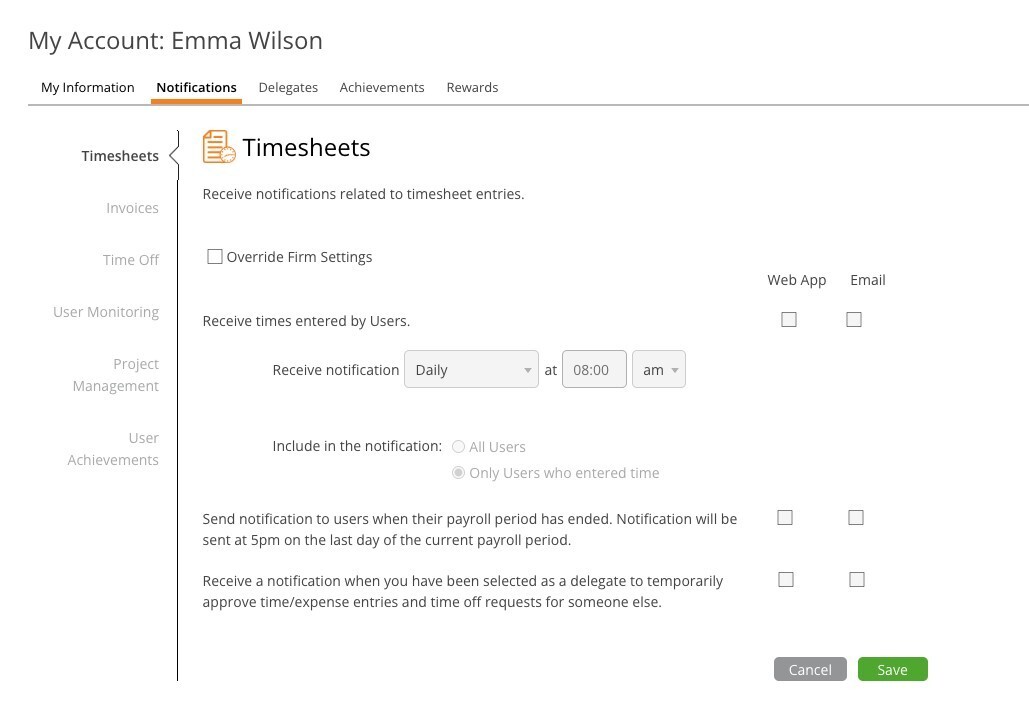
My Account > Notifications with the Override Firm Settings checkbox.
Overriding a Tab
- Open the sub-tab you want to change (Timesheets, Invoices, Time Off, and so on).
- Tick Override Firm Settings. Until you do, the controls are greyed out and the firm's defaults apply.
- Tick or untick Web App and Email for each alert, and adjust any times.
- Click Save.
Untick Override Firm Settings at any time to go back to the firm defaults for that tab.
Tips
- Web App alerts show under the bell icon in the top bar; the badge count tells you how many are unread.
- Overrides are per tab, so you can keep the firm's Time Off settings while changing only your Timesheets reminders.
- If you stop receiving an alert you expect, check whether an override is ticked on that tab.