
Applies to: Workforce · Premium · LawBillity
Admins can see and change your firm's Time Tracker subscription from inside the app: your plan and add-ons, how many user seats you pay for, how often you're billed, and your past invoices from eBillity.
Getting There
- In the left menu, click Admin > Settings, then click Firm Information.
- Next to Time Tracker Plan, click Manage Subscription.
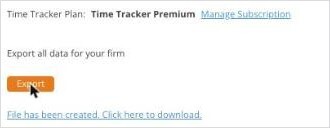
Your plan name and the Manage Subscription link on the Firm Information page.
The subscription page has two tabs: Plan and Billing.
The Plan Tab
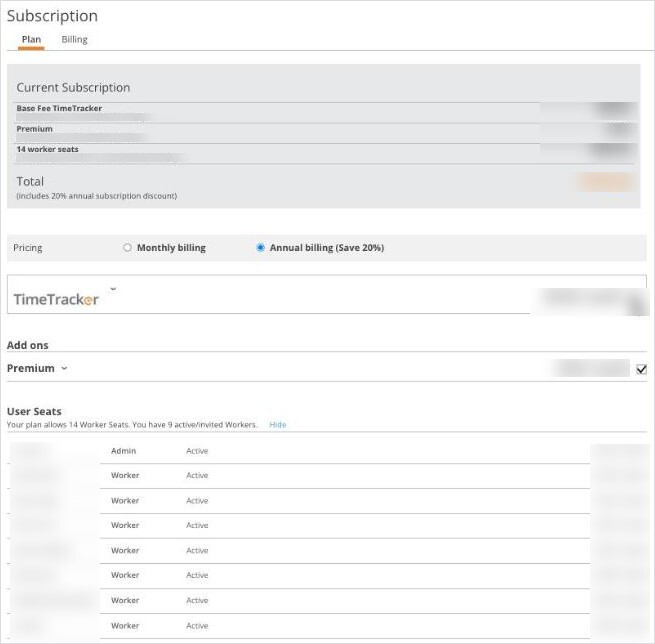
The Plan tab: your current subscription, billing frequency, base plan, add-ons, and user seats.
- Current Subscription lists what you pay for now: the base fee for Time Tracker, any add-ons, and your user seats, with the total.
- Pricing switches between Monthly billing and Annual billing. Annual billing is discounted, and the page shows the current saving.
- Add ons lists extras such as Premium. Click the arrow next to an add-on's name to see what it includes. Tick it to add it, or untick it to remove it.
- User Seats shows how many seats your plan allows and how many people are active or invited, then lists each seat and who is in it. See Adding More Users: User Seats.
- Total shows the new total for any changes you make, with a box for a promo code.
Making a Change
- Make your changes on the Plan tab: billing frequency, add-ons, or seats.
- Check the new total at the bottom of the page.
- Click Update Subscription.
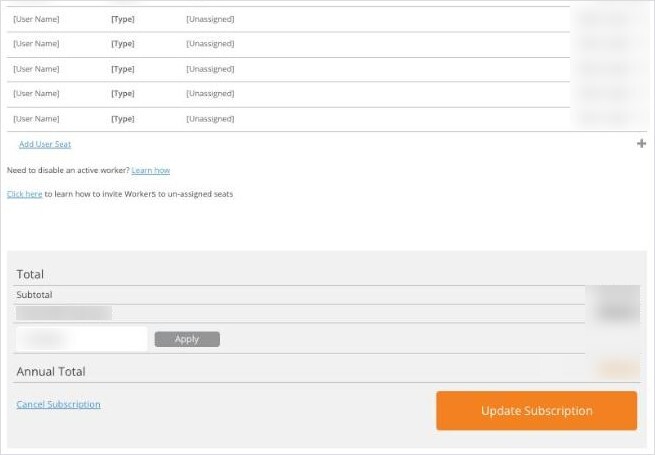
Empty seats show as [Unassigned]. Add User Seat, the totals, and Update Subscription are at the bottom.
The Billing Tab
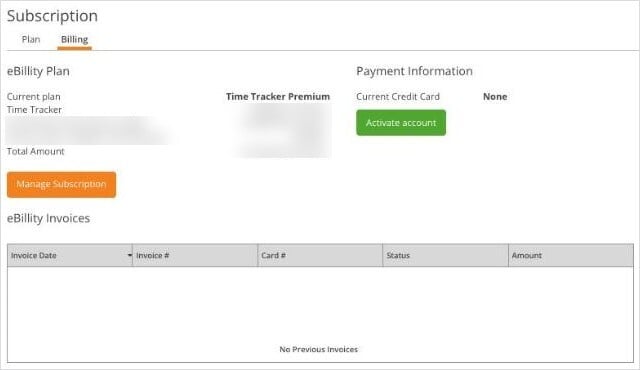
The Billing tab: your plan summary, the card on file, and your eBillity invoices.
- eBillity Plan summarizes your current plan and what you pay.
- Payment Information shows the credit card on file. If there's no card yet, click Activate account to add one. See Activating Your Subscription After a Free Trial.
- eBillity Invoices lists the invoices eBillity has sent you, with the date, invoice number, card, status, and amount.
If you need to change the card on file and don't see a way to do it, contact eBillity Support at support@ebillity.com or 1-800-851-0992.