
Applies to: Workforce · Premium · LawBillity
When something doesn't arrive in your accounting or payroll software, the Sync Log tells you exactly which item failed and why. Work through the steps below in order. Most problems are fixed by correcting one record and syncing again; you rarely need to change your connection.
Step 1: Check Whether It Was Sent at All
Open Sync > Sync Queue. If the item is still in the queue, it hasn't been sent yet.
- Cloud integrations (QuickBooks Online, Xero, Sage Intacct, Reckon Accounts Hosted, Clio): click Sync, or wait for Auto Sync to run if you use it.
- QuickBooks Desktop: run the QuickBooks Web Connector on the computer where QuickBooks is installed. See "Running and Scheduling the QuickBooks Web Connector".
- Sage 50: open the Sage 50 Connector on the computer where Sage 50 is installed and click Sync.
If the item isn't in the queue and never synced, it may not have been queued. Time entries are usually queued only once they're approved. On Entries > Manage Team Entries you can tick an entry and click Add to Queue.
Step 2: Open the Sync Log
Go to Sync > Sync Log and find the sync from the date in question. The status tells you what kind of problem it is:
Step 3: Read the Error
Click the arrow at the start of the row to expand it, then click Error next to each failed item. A Sync Error window shows the message from your accounting or payroll software.
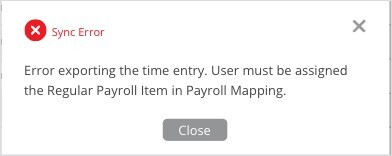
A Sync Error window. This one says what to fix in Time Tracker.
Fix the record the message points to, then sync again. The table below covers errors that come up across integrations. Each integration's setup article lists the errors specific to it.
Step 4: Fix Dependency Problems
Items marked Synced with Errors show a Dependency link. Click it to see what the item is waiting for, such as the customer a time entry belongs to. Click Add Dependencies & Sync These Items to queue those records and sync everything together.
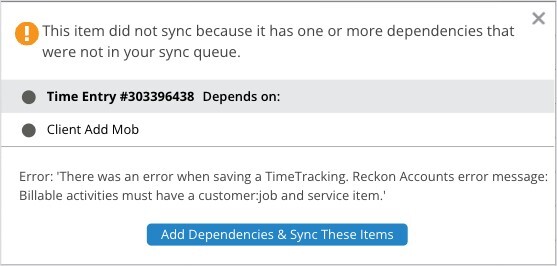
This time entry can't sync until its customer is synced.
Step 5: Sync Again and Check
After fixing the record, sync again (or run the Web Connector or Sage 50 Connector) and check that the new row in the Sync Log says Synced. A failed item stays in the queue, so it will be retried on every sync until it's fixed.
Before You Disconnect or Restart Setup
Disconnecting, restarting linking, or clearing sync settings is rarely the answer to a sync error and usually creates more work, because you'll have to link records and run a full sync again. Try the steps above first. If an error keeps coming back, contact eBillity Support and include:
- The integration name
- The date and time of the sync from the Sync Log
- The exact error message (open the Error link and copy the text)
- The item that failed: the user, customer, and date of the entry or the invoice number