
Skip to content
  • There are no suggestions because the search field is empty.

Navigating Time Tracker Billing

Find your way around the sidebar and learn where every feature lives

Applies to: Billing

Everything in Time Tracker Billing is reachable from the sidebar on the left side of the screen. It stays in place on every page, so once you know what's behind each item you can get anywhere in one or two clicks.
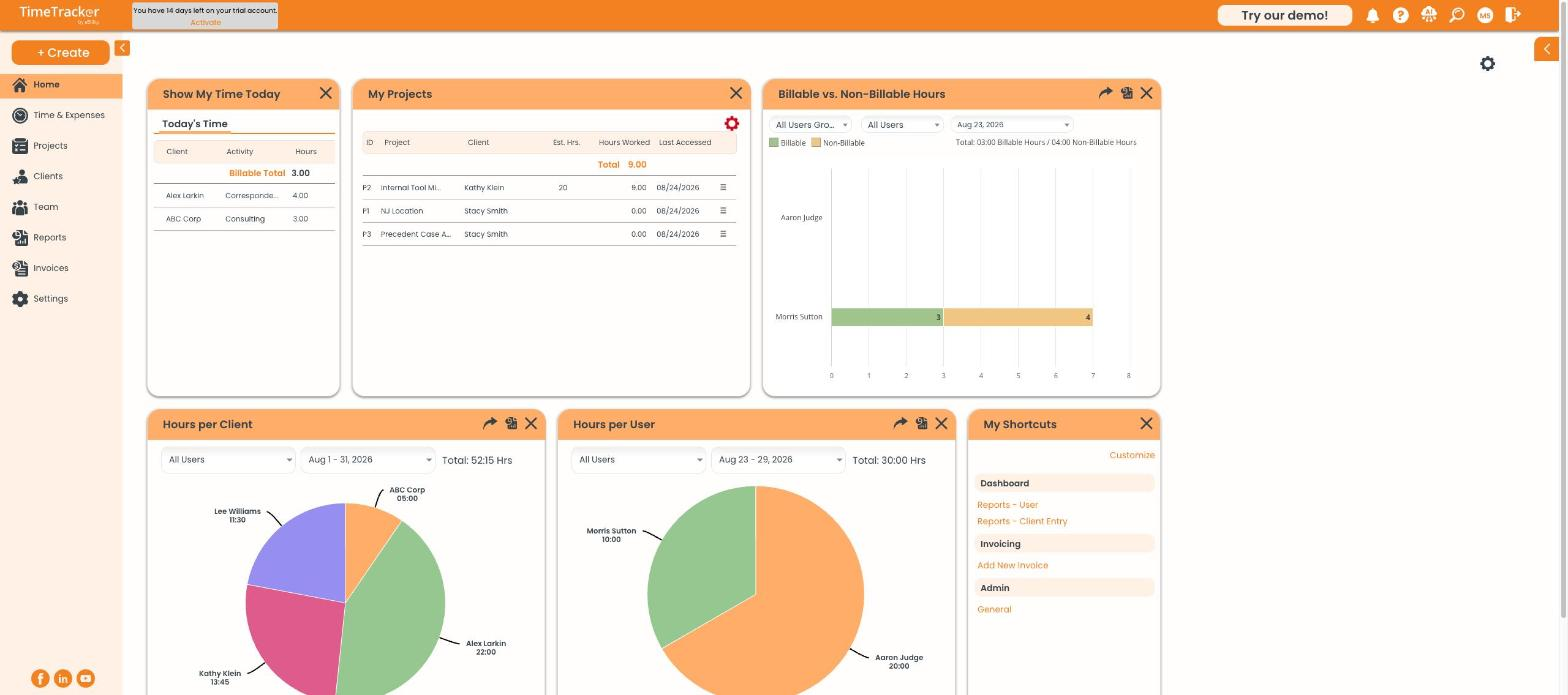
Billing Dashboard

The sidebar runs down the left side of every page.

What Each Sidebar Item Does

Sidebar item
Where it takes you
+ Create
Shortcut menu for creating a time entry, expense entry, project, client, or invoice from any page
Home
Your dashboard: today's time, your projects, and billable vs. non-billable charts
Time & Expenses
Weekly and daily timesheets, timers, and the full list of your entries
Projects
Every project, with budget, billed, and unbilled columns
Clients
Every client, with balance and unbilled amounts
Team
Your users, their roles, and their billing rates
Reports
All 19 reports and automated report scheduling
Invoices
Invoices, invoice history, client payments, and adjustments
Settings
Company details, preferences, timer rules, custom lists, and QuickBooks Online

Collapsing the Sidebar

Click the small arrow at the top of the sidebar to collapse it down to icons. This gives you more room on wide screens like the invoice entry picker. Click it again to bring the labels back.

Note: Looking for Schedule, Calendar, Contacts, or Documents? Those features belong to other Time Tracker plans and don't appear on Time Tracker Billing. See "What's Included in Time Tracker Billing" for the full list.