
Applies to: Billing
If you agree a budget with a client and only find out at invoice time that you blew through it, the conversation is much harder. Set an estimate on the project and Time Tracker Billing can warn you while there's still time to act.
Adding an Estimate
- Open the project and go to the Project Estimates tab.
- Tick Add an estimate for this project.
- Choose one of the four estimate methods (below).
- Enter the Projected Start Date and Projected End Date.
- Enter your Estimated Hours and, if budgeting by money, the Project Budget.
- Save.
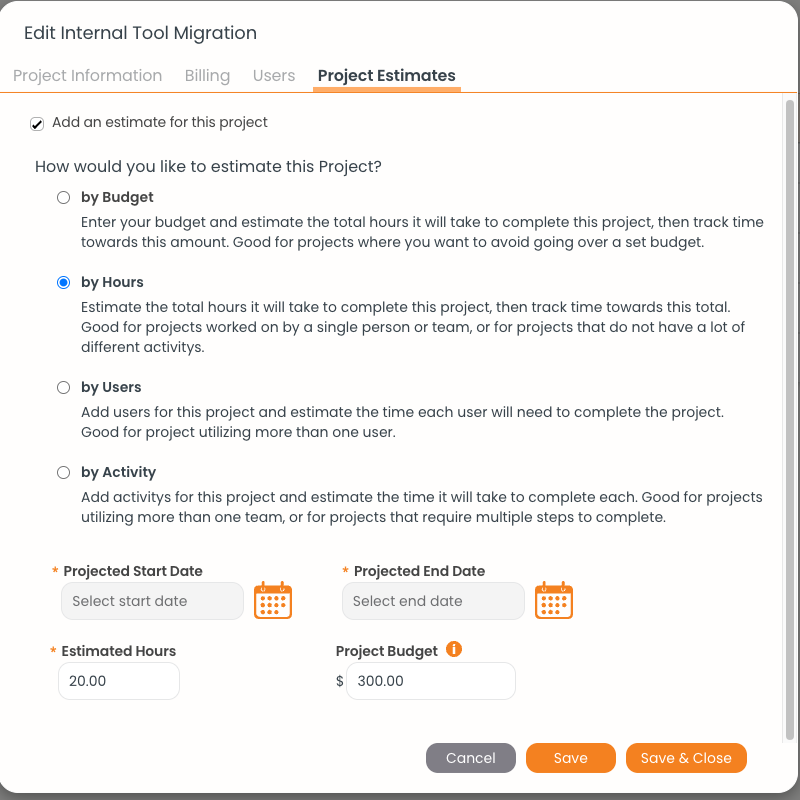
The four estimate methods, each with a short description of what it suits.
The Four Estimate Methods
Once set, the project list shows a Budget column next to billed and unbilled totals.
Turning On Budget Alerts
Go to Settings > Notifications and choose which alerts to receive — in the web app, by email, or in the mobile app:
- When a project's total estimated time is reached
- When a percentage of the estimate is reached (80% by default)
- On the project's projected end date
- A number of days before the projected end date (5 by default)
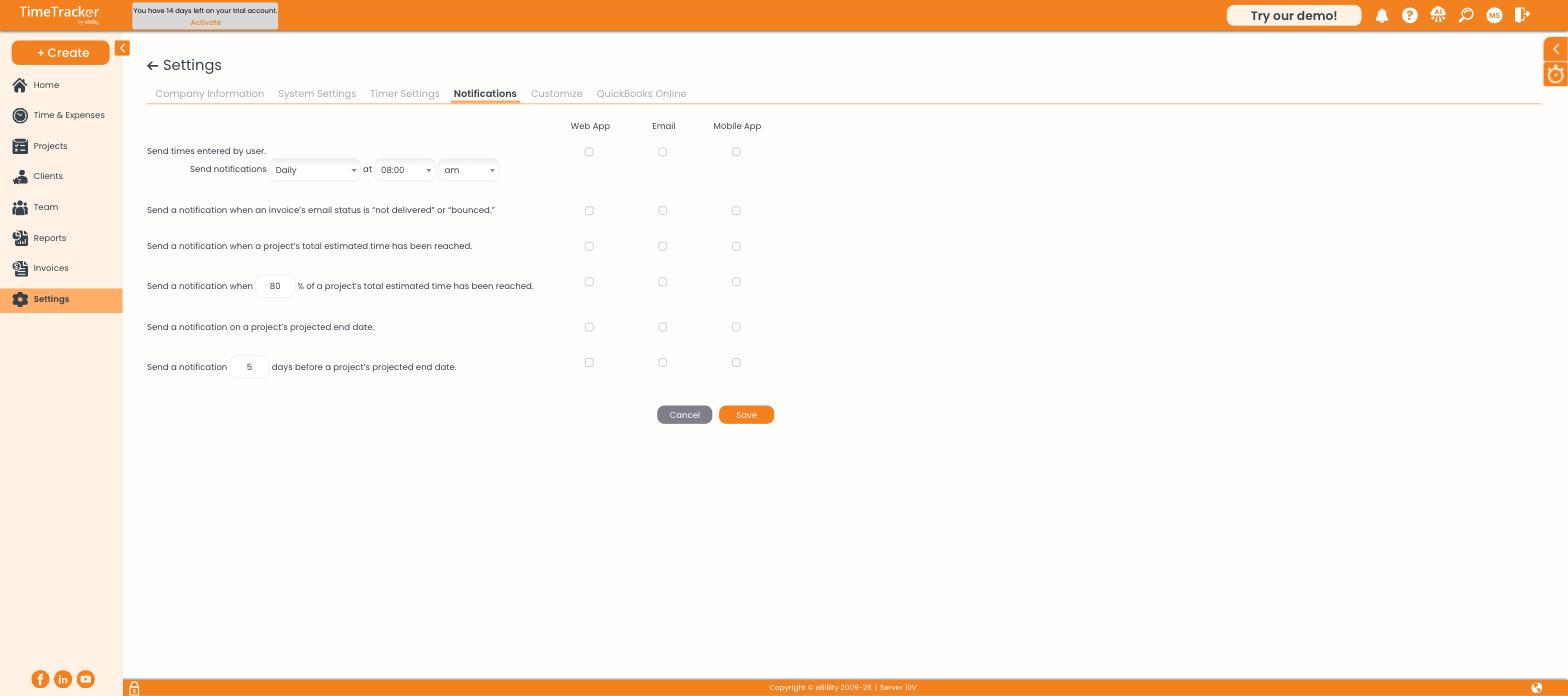
Each alert can be delivered to the web app, email, or the mobile app.
Tip: Turn on the percentage alert. Hearing at 80% that a project is running hot gives you time to talk to the client before the budget is spent.