
Skip to content
  • There are no suggestions because the search field is empty.

QuickBooks Online: What Syncs, Settings, and Fixing Errors

What goes to QuickBooks Online and what comes back, the account settings that control how it posts, and how to fix common errors

Applies to: Workforce · Premium · LawBillity

Once QuickBooks Online is connected, this article is your reference: which records travel in which direction, the QuickBooks account settings, and the errors customers most often run into.

The Connected QuickBooks Page

Open QuickBooks > Connect to QuickBooks in the left menu. When setup is complete you'll see "You are now connected to QuickBooks", a checklist with every step ticked, and your QuickBooks Realm ID (the company you're connected to).
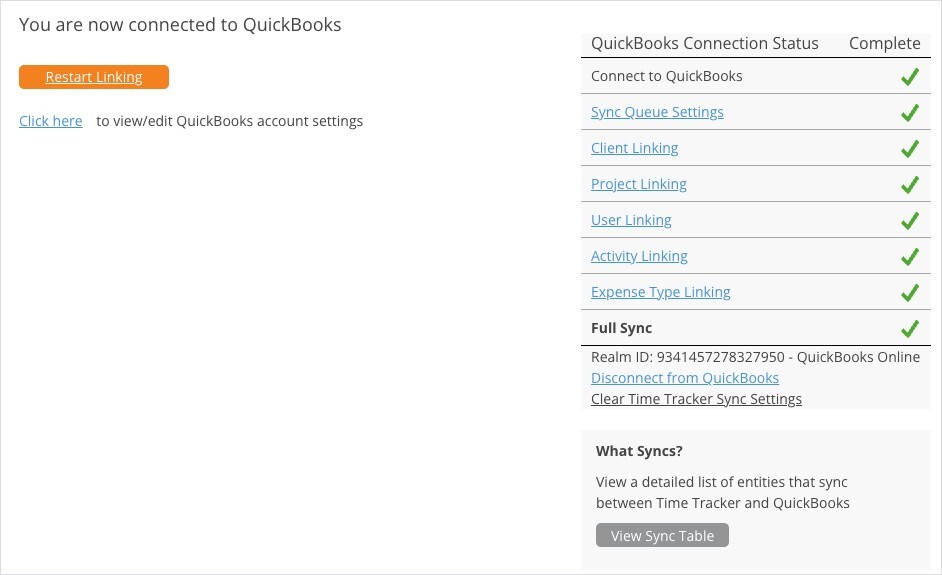
QuickBooks Online Connected Status Complete

The connected QuickBooks Online page.

Option
What it does
Click here (account settings)
Opens QuickBooks Account Settings. See below.
View Sync Table
Shows every record type and which way it syncs.
Restart Linking
Takes you back through the linking steps. The status shows Incomplete until you click through every step and run Complete Synchronization again, and that full sync also sends everything waiting in the queue.
Disconnect from QuickBooks
Ends the connection. Nothing syncs until you connect again.
Clear Time Tracker Sync Settings
Clears the sync settings Time Tracker has stored for this connection. Contact eBillity Support before using it.
Important: Restarting linking, disconnecting, or clearing sync settings isn't needed to fix a sync error. Fix the record named in the Sync Log instead.

What Syncs

Direction
Records
Both ways
Customers ↔ Customers, Projects ↔ Sub-customers, Users ↔ Employees, Vendors, Activities ↔ Products and services, Expense types ↔ Products and services
Time Tracker to QuickBooks
Time entries, breaks, and time off (as time charges), expense entries, invoices, payments, credit adjustments (as credit memos), debit adjustments and finance charges (as invoices), client refunds (as checks), trust account payments
QuickBooks to Time Tracker
Classes, locations, bank accounts, discount items, and sales tax items (used for labor and expense tax)

QuickBooks Account Settings

On the connected page, click Click here next to "to view/edit QuickBooks account settings". These settings decide where Time Tracker's transactions post in QuickBooks. Click Save when you're done.
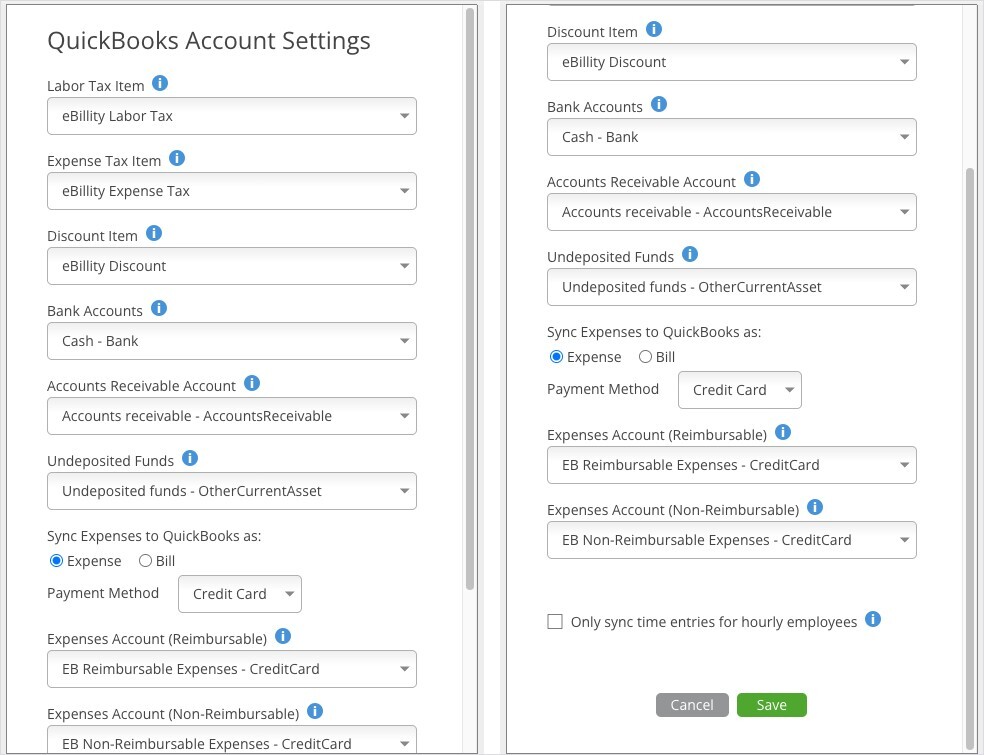
QuickBooks Online Account Settings

QuickBooks Account Settings (top and bottom of the window).

Setting
What it's for
Labor Tax Item / Expense Tax Item
The QuickBooks sales tax items used for the labor and expense tax on invoices.
Discount Item
Where invoice discounts post.
Bank Accounts
The bank account used for refunds.
Accounts Receivable Account
The receivable account invoices post to.
Undeposited Funds
Where payments land before you deposit them.
Sync Expenses to QuickBooks as
Expense or Bill. For Expense, also choose the Payment Method (ACH, Cash, Check, or Credit Card).
Expenses Account (Reimbursable / Non-Reimbursable)
The accounts for reimbursable and non-reimbursable expenses.
Only sync time entries for hourly employees
When ticked, only hourly employees' time entries go to QuickBooks.

Common Errors and Fixes

Read errors in Sync > Sync Log: expand the failed sync and click Error. The general steps are in "My Integration Isn't Syncing: Finding and Fixing a Failed Sync".

Error or problem
What it means
How to fix it
Invalid Reference Id: ... element id ... not found
Time Tracker is pointing to a QuickBooks record (often a customer, employee, or item) that has since been deleted, merged, or made inactive.
Make the record active again in QuickBooks, then sync. If it was merged into another record, contact eBillity Support.
Duplicate customers after connecting
Names didn't match exactly during Client Linking, so both records were kept.
Make the extra record inactive and keep names identical in both systems from now on. To re-link records, contact eBillity Support first, because it means restarting linking and running a full sync.
A user's time doesn't reach QuickBooks
The user isn't linked to an employee or vendor, the entries aren't approved, or Only sync time entries for hourly employees is ticked and the user is salaried.
Approve the entries, check the Only sync time entries for hourly employees setting, and check the user is linked to an employee (contact eBillity Support if they aren't).
Expenses post to the wrong account
The expense accounts or Sync Expenses as setting don't match how you book expenses.
Change them in QuickBooks Account Settings. Changes apply to future syncs.
Synced with Errors / Dependency
An item's customer, project, or activity wasn't synced first.
Click Dependency, then Add Dependencies & Sync These Items.