
Applies to: Billing
When a client pays an invoice, record the payment so their balance and your accounts receivable stay accurate.
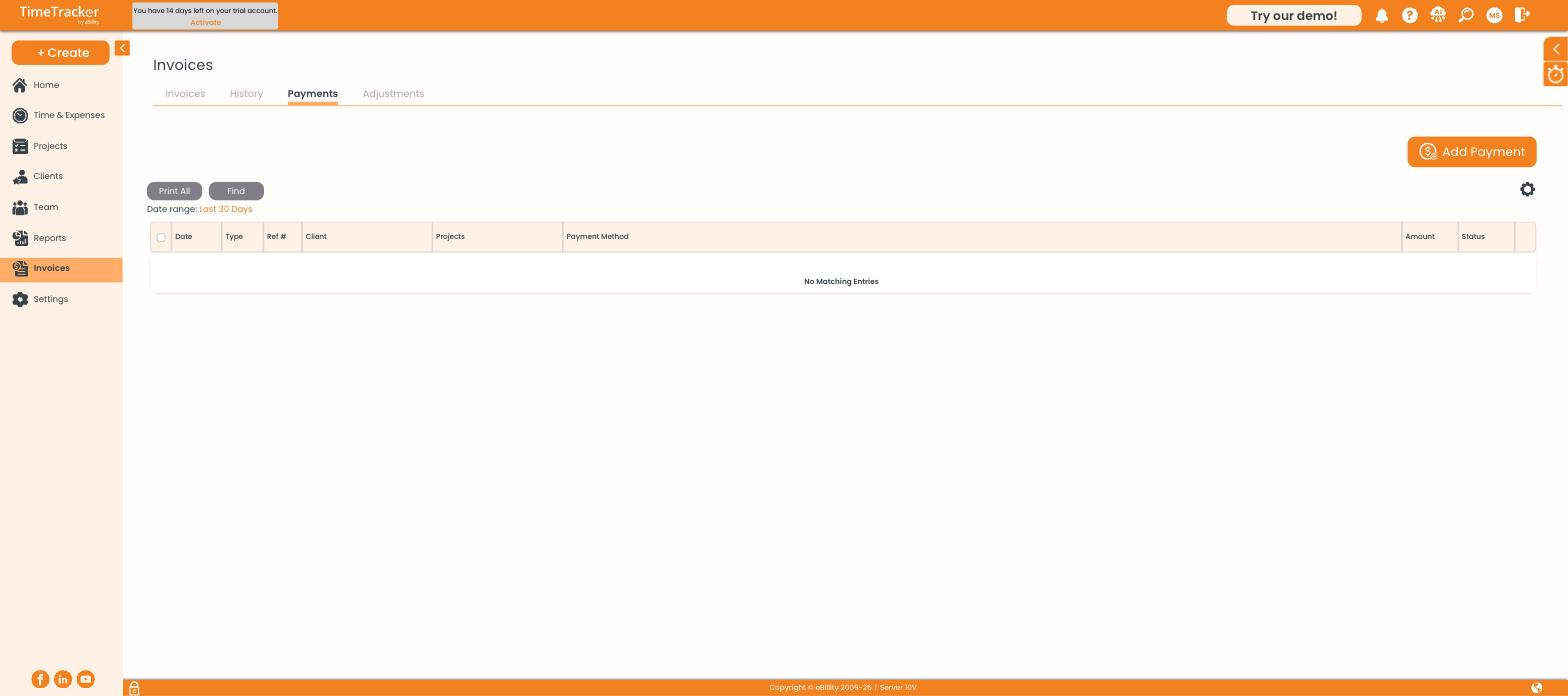
The Payments tab under Invoices lists every payment received.
Adding a Payment
- Go to Invoices and open the Payments tab.
- Click Add Payment.
- Check the Payment Date.
- Choose the Client. Their open balance, unbilled balance, and last payment date appear on the right.
- Choose the Payment Method: Credit Card, Check, Wire, Cash, or e-Check.
- Enter the Payment Amount.
- Apply the payment to invoices (see below), then click Save.
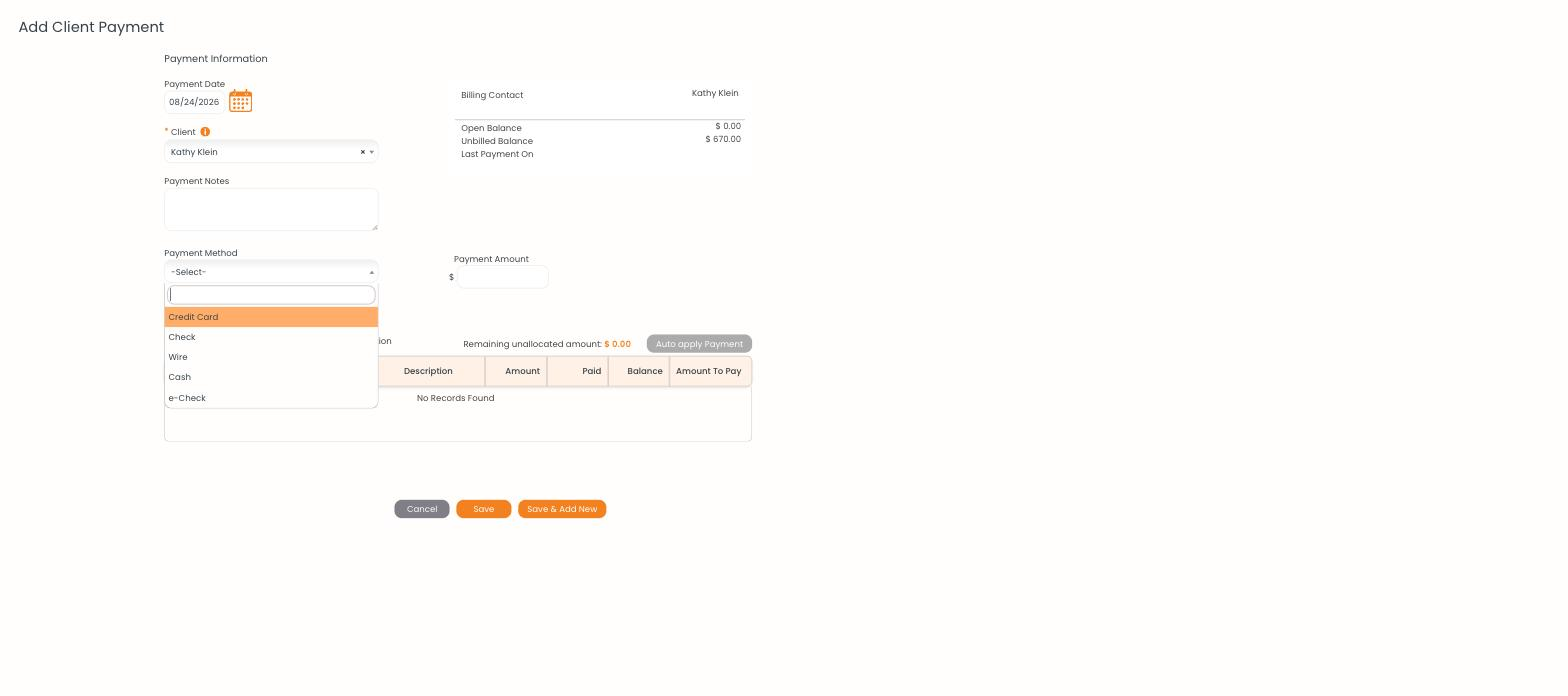
The Add Client Payment form, with the client's balances on the right and the invoice list below.
Applying the Payment to Invoices
The table at the bottom lists the client's open invoices with an Amount To Pay column:
- Type an amount against each invoice, or click Auto apply Payment to spread it automatically.
- Remaining unallocated amount shows what hasn't been assigned yet — get it to $0.00 before saving.
- To record a retainer or advance, save without applying it to any invoice. It sits on the client's account and can be applied later.
Open Balance vs. Unbilled Balance
- Open Balance — finalized invoices the client hasn't paid.
- Unbilled Balance — time and expenses not yet on a finalized invoice.
Note: A pre-bill counts toward the unbilled balance, not the open balance — a draft hasn't asked the client to pay anything. If a client's open balance looks too low, check whether their invoice is still a pre-bill.