
Applies to: Billing
When you pay for something on a client's behalf — a courier, a filing fee, printing — record it as an expense. It will appear alongside your time entries when you build the client's next invoice, so nothing you spent gets forgotten.
Creating an Expense Entry
- Click + Create > Expense Entry (or Create Expense Entry on the Manage Time & Expense Entries page). The form opens in a separate window.
- Check the User and Date.
- Choose the Client, then the Project.
- Choose an Expense Type (e.g., Courier - Fedex, Copying).
- Enter a Description — this is what the client reads on the invoice, so be specific.
- Enter the Cost and Quantity, plus a Markup Ratio if you charge one.
- Tick Reimbursable and/or Taxable if they apply.
- Attach the receipt (see below), then click Save.
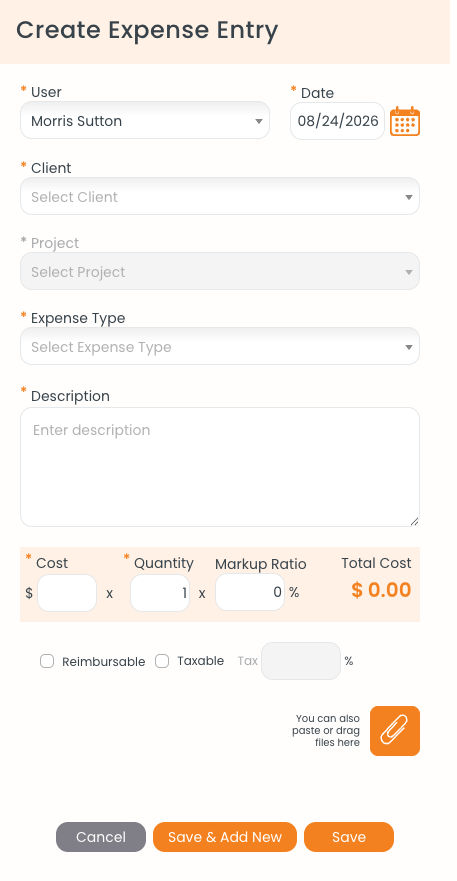
The Create Expense Entry form. Cost, quantity, and markup are calculated on the highlighted row.
Attaching a Receipt
Click the paperclip at the bottom of the form to browse for a file, or paste or drag the file straight onto that area. Attaching the receipt now is much easier than hunting for it at month end.
Adding Your Own Expense Types
Go to Settings > Customize > Custom Lists and click Add Expense. Each type can carry a default amount, tax percentage, and reimbursable flag — useful for costs you log repeatedly.
Next Steps
The saved expense starts as UnBilled. When you build the client's next invoice, it appears in the entry picker under its project's (Expenses) heading. See "Creating an Invoice."