
Applies to: Billing
Every report in Time Tracker Billing works the same way: choose the report, set the filters, generate. Once you've run one, you can run them all.
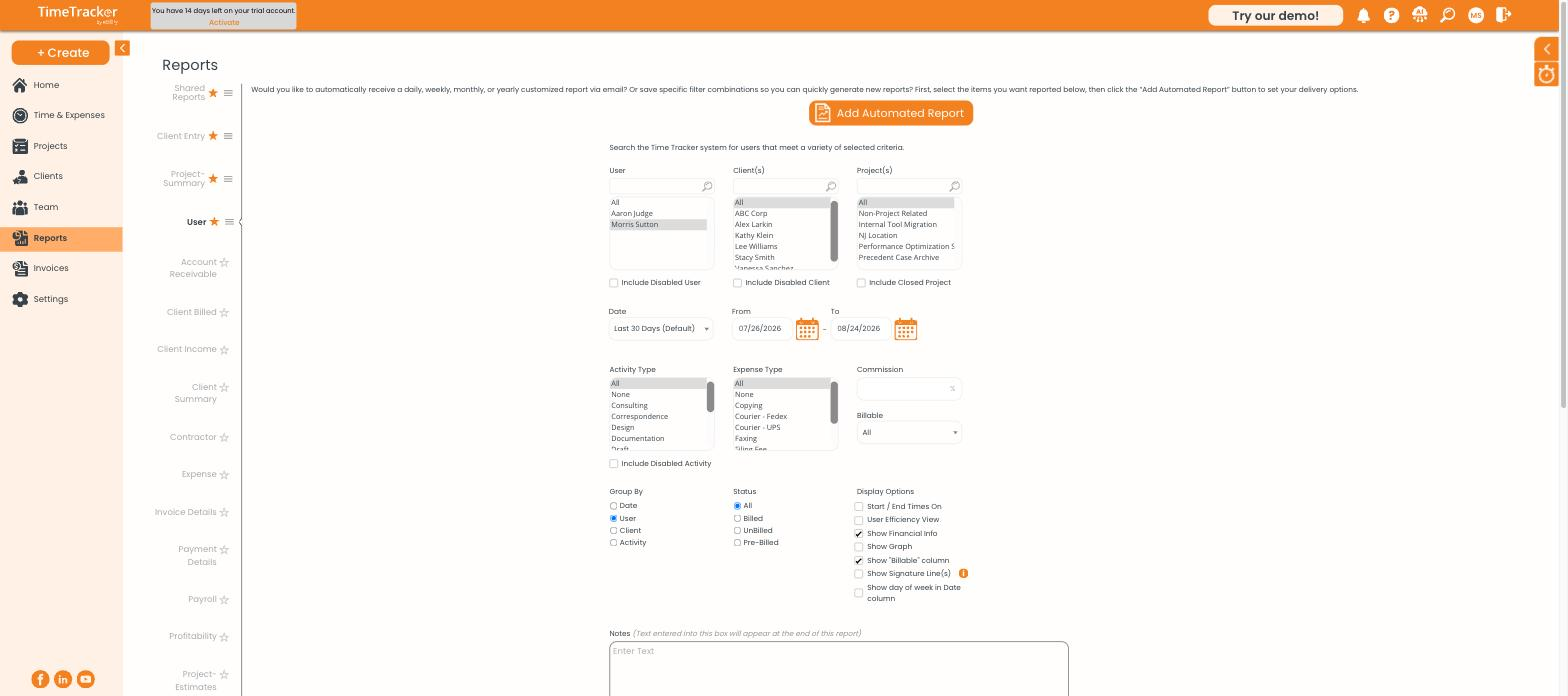
The Reports page — report list on the left, filters in the center.
Generating a Report
- Go to Reports and choose a report from the list on the left.
- Narrow by User, Client(s), and Project(s) in the three list boxes.
- Set the Date range (defaults to the last 30 days).
- Filter by Activity Type, Expense Type, or Billable status if needed.
- Choose a Group By: Date, User, Client, or Activity.
- Choose a Status: All, Billed, UnBilled, or Pre-Billed.
- Click Generate Report.
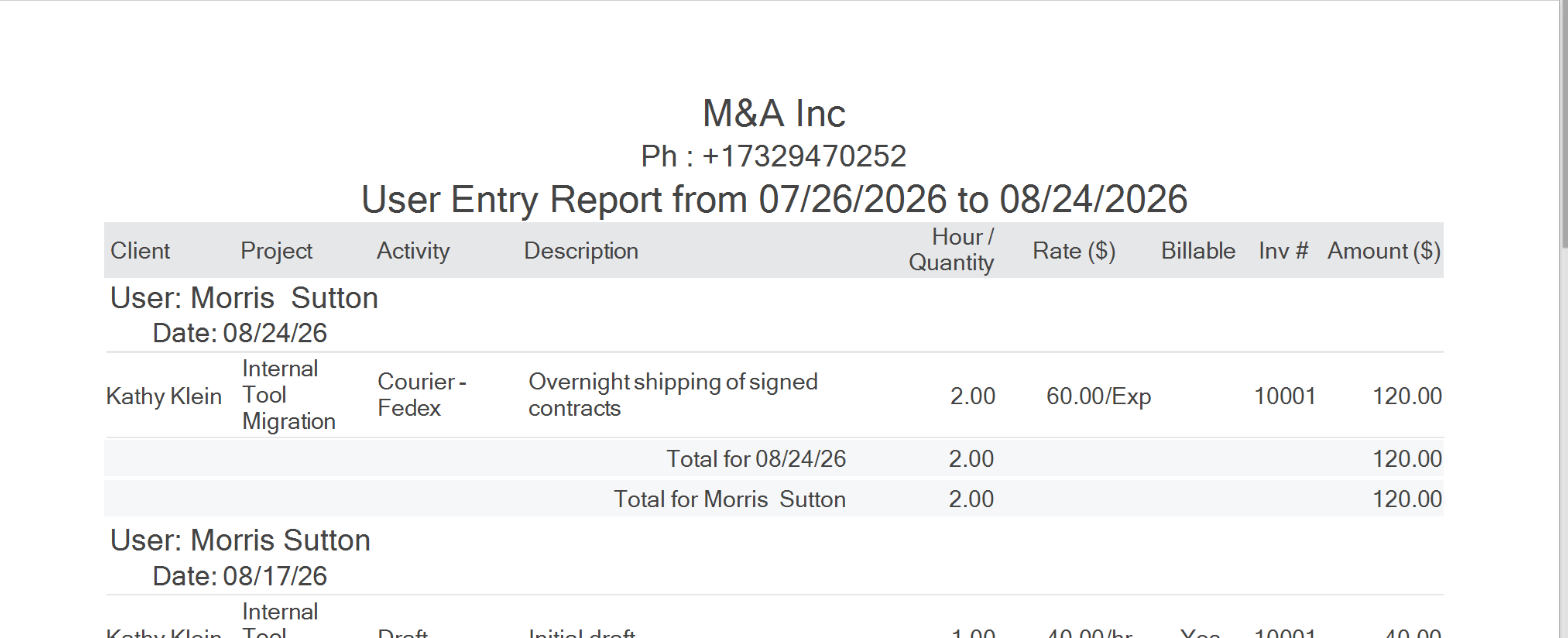
A generated User Entry Report, grouped by user and date with subtotals.
Display Options
The checkboxes on the right change what the report shows: start/end times, financial info (rates and amounts), a graph, the billable column, signature lines for reports a client signs off, and the day of week in the date column. Anything typed into Notes is printed at the end of the report.
Exporting
- Use the toolbar above the report to print, search, zoom, or download it.
- Click Export To CSV to open the underlying data in a spreadsheet.
Scheduling a Report by Email
- Set up the filters so the report shows what you want.
- Click Add Automated Report at the top of the page.
- Choose the frequency: daily, weekly, monthly, or yearly.
Tip: If a report comes back empty, check the date range first. The default is the last 30 days, which hides older work.