
Applies to: Workforce · Premium · LawBillity
With QuickBooks Desktop, nothing leaves Time Tracker until the QuickBooks Web Connector runs on your QuickBooks computer. Items wait in the sync queue until then. This article covers running it by hand, scheduling it, and the situations that stop it working.
How You Know Items Are Waiting
Click Sync in the top bar. Next to QuickBooks you'll see the number of items in the queue with "To sync, please run the QuickBooks Web Connector". There's no Sync button, because the sync has to start from your QuickBooks computer.

The Sync menu for QuickBooks Desktop.

The Sync Queue says the same thing; you can still Un-Queue items here.
Running a Sync by Hand
- On the computer where QuickBooks Desktop is installed, open QuickBooks.
- Go to File > Update Web Services to open the Web Connector.
- Tick Time Tracker and click Update Selected.
- Wait for the progress bars to reach 100%. Then check Sync > Sync Log in Time Tracker.
Syncing Automatically
QuickBooks Desktop doesn't use Time Tracker's Auto Sync schedule. Sync > Auto Sync reminds you: "In the Web Connector, check the Auto-Run box and set how often you want the sync to happen."
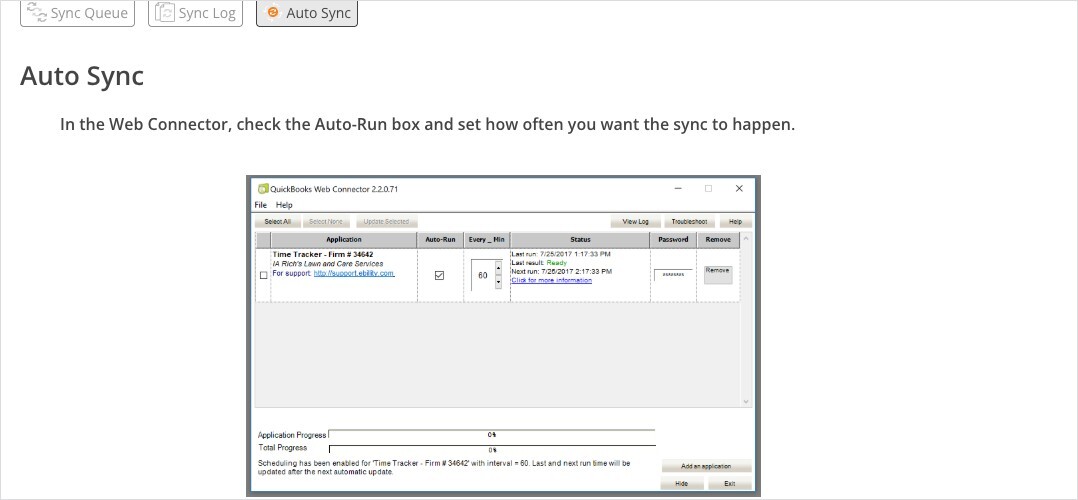
The Auto Sync page for QuickBooks Desktop.
- Open the Web Connector.
- Tick Auto-Run next to Time Tracker.
- In Every_Min, enter how many minutes to wait between syncs (for example 60).
- Leave the Web Connector running. You can hide it; closing it stops automatic syncs.
When the Web Connector Stops Working
Tips
- Run the Web Connector before payroll or month-end, then check the Sync Log, so you're working from complete data.
- Keep the computer that runs the Web Connector on during the hours you schedule it.