
Skip to content
  • There are no suggestions because the search field is empty.

Sage Intacct Sync Errors and How to Fix Them

Look up a Sage Intacct error from your Sync Log and find the setting to change in Sage Intacct

Applies to: Workforce · Premium

Every Sage Intacct sync error starts with "Error returned from Sage Intacct API:" followed by Sage Intacct's message. Almost all of them mean a setting needs changing in Sage Intacct, not in Time Tracker. Find your message below, make the change, and sync again.

Where to See the Error

Go to Sync > Sync Log, expand the failed sync, and click Error next to the item. The same list of errors is in Time Tracker: on the Sage Intacct setup page, click Click here under Sync Troubleshooting.
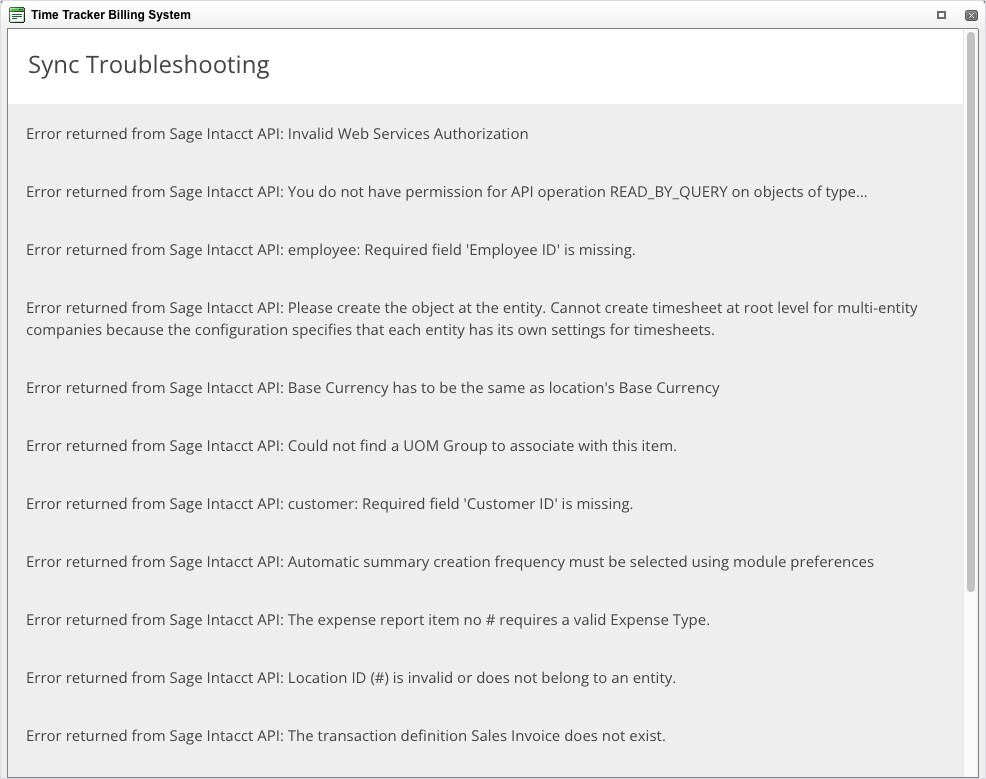
Sage Intacct Sync Troubleshooting Window

The Sync Troubleshooting window on the Sage Intacct setup page.

Error Messages

Error returned from Sage Intacct API
What it means
How to fix it
Invalid Web Services Authorization
The eBillity Sender ID is missing or mistyped.
In Sage Intacct, go to Company > Company Info > Security tab > Edit. In Web Services authorizations, make sure the Sender ID is exactly eBillityMPP. (Setup step 2.)
You do not have permission for API operation READ_BY_QUERY on objects of type…
The user that connected Time Tracker doesn't have full permissions.
Assign the user to the role you created for eBillity, and give that role All permissions for every Application/Module. (Setup steps 3 and 4.)
employee: Required field 'Employee ID' is missing.
Employees have no document number sequence.
Make sure Time & Expenses is installed (Company > Subscriptions > Applications). Then in Time & Expenses > Configure > Auto-numbering sequences, give 'Employee' a document number.
Please create the object at the entity. Cannot create timesheet at root level for multi-entity companies…
Timesheets are set to be managed by each entity.
In Projects > Open Setup > Configure Projects > Timesheet settings, choose Top Level. (Setup step 6.)
Base Currency has to be the same as location's Base Currency
The Web Services user has no entities assigned.
Go to Company > Web Services Users > edit the user > User entities tab, and select the entity or location you use.
Could not find a UOM Group to associate with this item.
Order Entry has no default unit-of-measure group.
Make sure Order Entry is installed. Then in Order Entry > Configure > Unit of measure, set a Default group.
customer: Required field 'Customer ID' is missing.
Customers have no document number sequence.
Make sure Accounts Receivable is installed. Then in Accounts Receivable > Configure > Document sequencing, give 'Customers' a document number.
Automatic summary creation frequency must be selected using module preferences
Expense reports have no document number sequence.
Make sure Time & Expenses is installed. Then in Time & Expenses > Configure > Auto-numbering sequences, give 'Expense report' a document number.
The expense report item no # requires a valid Expense Type.
Restricted access to GL accounts isn't enabled for expense types.
In Time & Expenses > Configure > Accounting settings, tick 'Expense types'.
Location ID (#) is invalid or does not belong to an entity.
The location isn't part of an entity, or the company has no entities.
Check you have at least one entity (Company > Entities). Then edit the location (Company > Locations) and set its Parent to an entity.
The transaction definition Sales Invoice does not exist.
Order Entry has no Sales Invoice transaction definition.
Contact Sage Intacct for help with the Order Entry workflow and Order Entry transaction definitions.
Please select a valid Unit in line no : # Missing Unit
Custom units of measure are off, or the base unit isn't named 'Each'.
In Order Entry > Configure > Unit of measure, tick 'Enable custom units of measure'. Then in Order Entry > Open Setup > Units of Measure, edit Count and make sure the Base unit is 'Each'.
Your Sales Invoice transaction definition is configured to affect AR. However, no GL Accounts were found in the AR GL Information tab for itemid '#'…
Items without a GL group have no AR account mapping.
Go to Order Entry > Order Entry Transaction Definitions > edit Sales Invoice > Posting Configuration tab. In Transaction posting AR account mapping, add one Credit row and one Debit row without an Item GL Group.
GL Account number '#' associated with account label '#' is configured as requiring a [Dimension]
The GL account requires a dimension that Time Tracker doesn't send.
Go to General Ledger > Accounts > edit the account named in the error. In Include dimensions, untick the required dimensions.
The timesheet begin date must be on a week start day.
Time Tracker and Sage Intacct start the week on different days.
Use the same day in both: 'Week begins on' in Sage Intacct (Company > Setup > Configuration > Company > Accounting) and 'Work Week starts on' in Time Tracker (Admin > Settings > Customize > Timesheets).

Still Stuck?

Follow the general steps in "My Integration Isn't Syncing: Finding and Fixing a Failed Sync". If you contact eBillity Support, copy the full error message from the Sync Log.