
Skip to content
  • There are no suggestions because the search field is empty.

Setting Up Time Off Accrual Policies

Decide how users earn time off — a yearly lump sum, per pay period, or per hour worked — and set caps, resets, and tenure levels

Applies to: Workforce · Premium · LawBillity

Once a time off code exists, accrual settings decide how users earn hours for it. You can grant a lump sum every year, drip hours in each pay period, accrue a set amount per hour worked, or skip automatic accruals and add hours by hand. Settings are firm-wide per code: everyone assigned to the code follows the same rule.

Getting There

There are three ways into the accrual dialog. All open the same settings, titled "Firm settings for accruals":

  • When creating a code, tick Track Accruals and click Save & Configure.
  • On an existing code, click its name, then Make Edits next to Track Accruals.
  • On Entries > Time Off > Balances, click the link in the Accrual Type column.
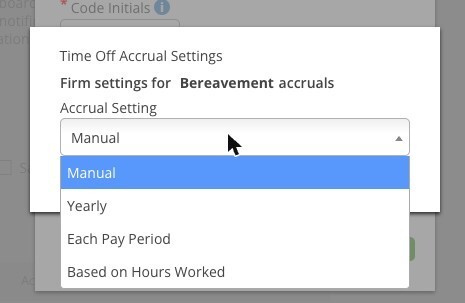
Accrual Setting Dropdown

The Accrual Setting dropdown offers four methods.

Choosing an Accrual Method

Accrual Setting
How hours are earned
Typical use
Manual
Nothing accrues automatically. An admin adds hours on the Balances tab.
Holiday allowances granted by hand; one-off grants.
Yearly
A fixed number of hours per year, granted on the accrual date.
Vacation, personal days.
Each Pay Period
Hours land a set number of days after each pay period ends. Enter the amount per year (the system divides it across periods) or per period.
Steady accrual that matches payroll.
Based on Hours Worked
Accrue X hours for every Y hours worked. Salaried users accrue on a 40-hour work week.
Sick-leave laws such as 1 hour per 30 worked.

Setting the Options

Everything below Manual shares the same set of options. Here is what each one does:
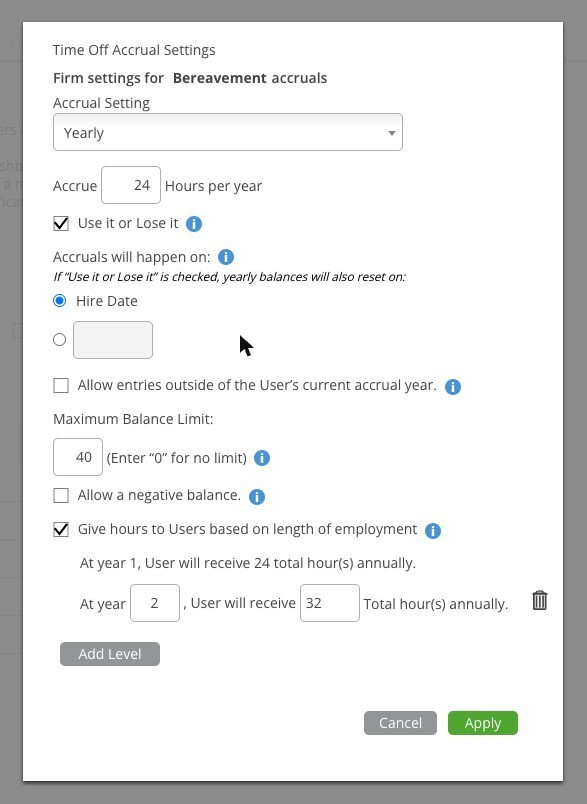
Option
What it does
Accrue N hours per year / per period / per N hours worked
The rate. For Each Pay Period, choosing "per year" makes the system work out how much to add each period.
Accruals will take place N day(s) after the end of each pay period
(Pay Period and Hours Worked only.) A delay before accrued hours land, so payroll can close first.
Use it or Lose it
The user must use all accrued hours by the end of the accrual period or lose them. The balance resets to 0 on the accrual date. The product warns this is not recommended for California users.
Accruals will happen on
Each user's Hire Date, or one fixed date for the whole firm. If you choose Hire Date and a user has no hire date in their profile, the system uses January 1.
Allow entries outside the user's current accrual year
Lets a user request time off dated in the next accrual year before their balance has reset. Example: balances reset June 1; the user can still request July 1 off in May.
Maximum Balance Limit
The user stops accruing once the balance reaches this number. Enter 0 for no limit.
Allow a negative balance
Lets a request save even if it takes the balance below zero. When off, the request form blocks the save and shows how far over balance it is.
Give hours to users based on length of employment
Tenure levels: at year 2 the user receives N total hours annually, at year 3 M hours, and so on. Click Add Level for each step. Each level must be higher than the previous one.

Yearly Accrual Settings

Yearly accrual configured: 24 hours per year, use-it-or-lose-it, a 40-hour cap, and 32 hours from year two.
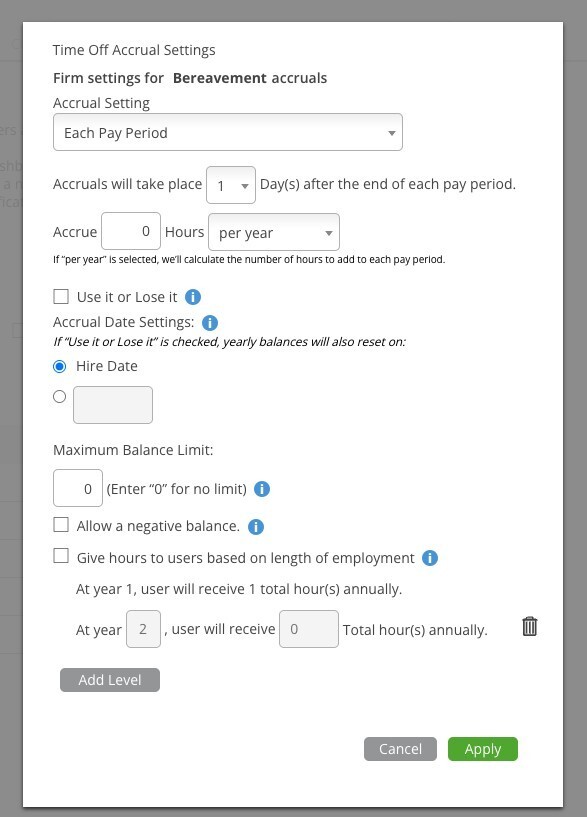
Each Pay Period Accrual Settings

Each Pay Period adds the post-period delay and a per-year / per-period toggle.
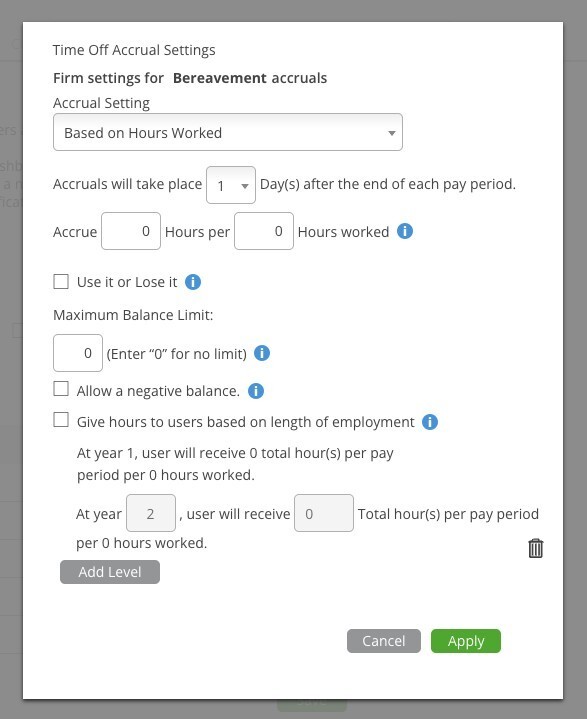
Based on Hours Worked Accrual Settings

Based on Hours Worked: accrue N hours per N hours worked.

Important: Tenure levels rely on each user's hire date. Set it on the user's Overview page under Admin > Manage Users before turning this on, otherwise every user is treated as year one.

Worked Examples

  • 80 hours of vacation a year, reset each January, roll over up to 120: Yearly · Accrue 80 · Use it or Lose it off · fixed date January 1 · Maximum Balance Limit 120.
  • Sick leave at 1 hour per 30 worked, capped at 48: Based on Hours Worked · Accrue 1 hour per 30 hours worked · Maximum Balance Limit 48.
  • Public holidays granted by hand: Manual, then add the hours on the Balances tab each year.

Next Steps

Check what a user has actually earned, or top up a balance by hand, in "Managing Time Off Balances". If a code should not accrue at all, leave Track Accruals unticked when you create it — see "Setting Up Time Off Codes".