
Applies to: Workforce · Premium · LawBillity
Before anyone can request time off, an admin needs to switch the feature on and create at least one time off code. A code is simply a category of time off — Vacation, Sick, Holiday, Personal Day — and every request uses exactly one. This article covers the firm-wide switches and how to add, edit, and assign codes. Accrual rules (how hours are earned) are covered separately in "Setting Up Time Off Accrual Policies".
Getting There
Go to Admin > Settings > Timer Settings and click the Time Off sub-tab on the left. (The Manage Time Off Codes link on the Time Off page under Entries takes you to the same place.)
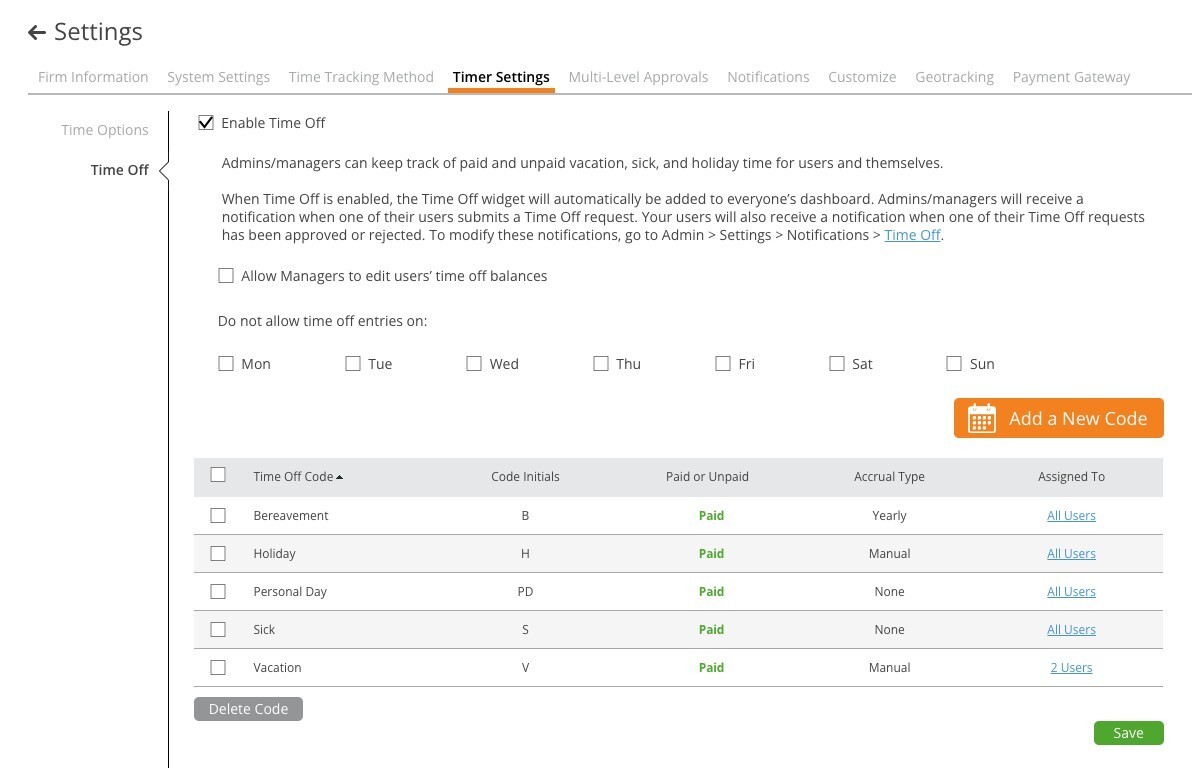
The Time Off settings tab: the enable switch, firm-wide rules, and the code table.
Enabling Time Off
Tick Enable Time Off. This adds the Time Off widget to every user's dashboard, notifies admins and managers when a user submits a request, and notifies users when a request is approved or rejected. Two more firm-wide options sit underneath:
Click Save at the bottom of the page after changing either of these.
Adding a Code
- Click Add a New Code.
- Type a Time Off Code Name — this is what users pick in the request dropdown and what appears on timesheets and reports.
- Type Code Initials (H, S, V, PD) — a short label used where space is tight.
- Choose Paid or UnPaid. Paid time off counts toward the user's hour totals on the Approvals screen; Unpaid does not.
- Click Assign Users and tick who may use this code, or Select all users. A user only sees codes assigned to them.
- Tick Track Accruals if the system should earn hours for users automatically. Leave it unticked for codes with no balance (a firm-wide holiday, for instance).
- Click Save. If you ticked Track Accruals the button reads Save & Configure and the accrual settings open next.
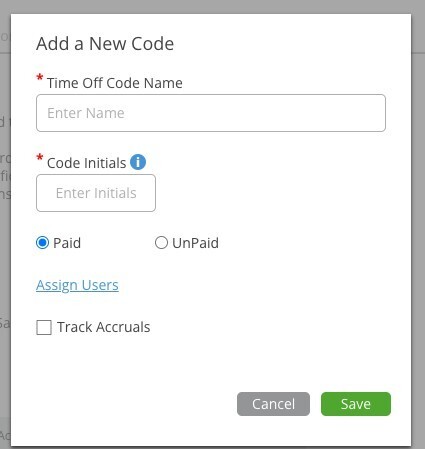
The Add a New Code dialog.
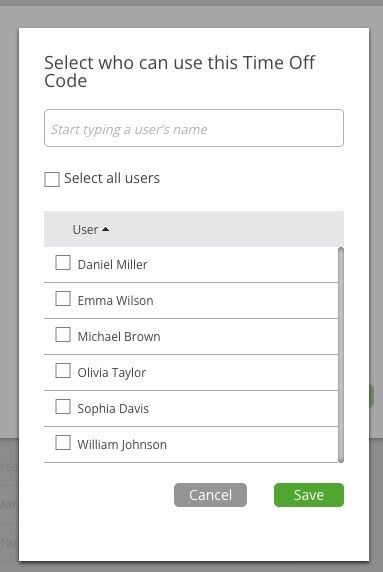
Assign Users: search by name, tick individuals, or Select all users.
Editing or Deleting a Code
Click a code's name in the table to open Edit Code. From here you can rename it, change its initials, re-assign users, and click Make Edits next to Track Accruals to change its accrual rules. To remove a code, tick its checkbox and click Delete Code.
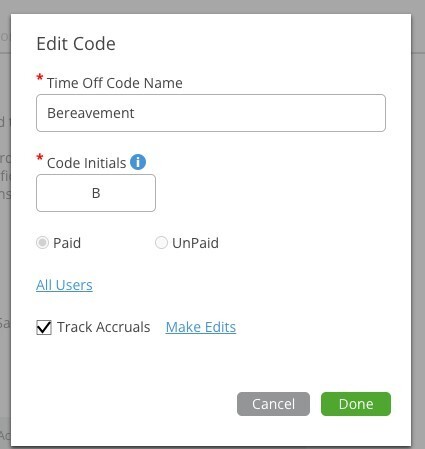
Edit Code: Paid/Unpaid is locked, and Make Edits opens the accrual settings.
Tips
- Keep the list short. Three or four codes cover most firms; users have to pick from this list every time they request.
- Use the Assigned To column to check who can use a code — it is clickable and opens the same user picker.
- Codes that do not track accruals show None in the Accrual Type column. That is fine for holidays you enter on everyone's behalf.
Next Steps
If a code should build up a balance over time, set its accrual rules in "Setting Up Time Off Accrual Policies". To grant hours by hand, see "Managing Time Off Balances". To control who is emailed when requests come in, see "Configuring Firm Notifications".