
Applies to: Workforce · Premium
Gusto is a cloud payroll service. Once it's connected, Time Tracker sends your team's approved hours, breaks, and time off to Gusto, and brings back your Gusto employees, their pay rates, and your time off policies. You run payroll in Gusto as usual, without re-typing hours.
Before You Start
- You need a Gusto account. If you don't have one, the Gusto page in Time Tracker has a link to sign up.
- Finish onboarding your employees in Gusto. Time entries only sync for employees who are fully onboarded there.
- Sign in to Time Tracker as an admin.
Getting There
Click Gusto in the left menu. If you don't see it, go to More > Integrations and click Gusto to add it, or contact Support.
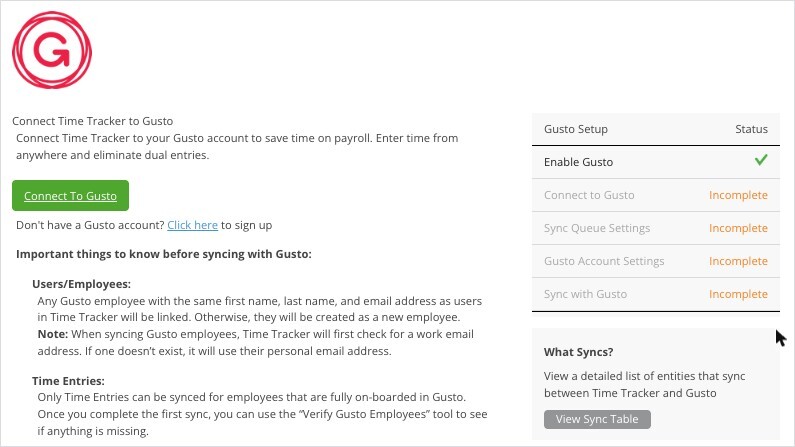
The Gusto page before you connect, with the Gusto Setup checklist on the right.
Setting Up Gusto
The Gusto Setup checklist on the right shows your progress. Each step turns from Incomplete to a green tick.
- Enable Gusto: this is ticked once Gusto has been added to your account.
- Connect to Gusto: click Connect To Gusto, sign in to Gusto, and approve the connection.
- Sync Queue Settings: choose what goes into the sync queue automatically: Approved time entries, Approved paid time off entries, and Workers. Anything you leave unticked can still be added to the queue by hand.
- Gusto Account Settings: tick Only sync time entries for hourly employees if salaried employees' hours shouldn't go to Gusto, then click Save.
- Sync with Gusto: run your first sync from Sync at the top of the screen.
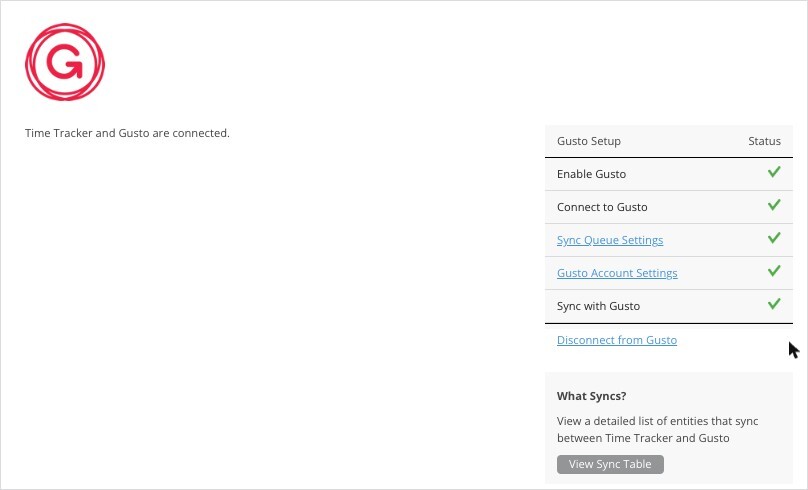
Once every step has a green tick, the page says "Time Tracker and Gusto are connected."
How Employees Are Matched
- A Gusto employee with the same first name, last name, and email address as a Time Tracker user is linked to that user. Otherwise, the Gusto employee is created as a new user in Time Tracker.
- Time Tracker checks the employee's work email first. If there isn't one, it uses their personal email.
- Only time entries for employees who are fully onboarded in Gusto can sync. After your first sync, use the Verify Gusto Employees tool to see if anyone is missing.
What Syncs
Sending Hours Each Pay Period
- Make sure the pay period's time entries and time off are approved. With the default queue settings, approved entries go into the sync queue automatically.
- Click Sync at the top of the screen and sync with Gusto.
- In Gusto, check the hours on the payroll and run it as usual.
For more about the queue and the log, see "How Syncing Works: Sync Queue, Sync Log, and Auto Sync". If a sync fails, see "My Integration Isn't Syncing: Finding and Fixing a Failed Sync".