
Applies to: Billing
These settings decide how your whole team records time — whether entries round up, whether time defaults to billable, and what the timesheet grid looks like. Set them early, before habits form around the defaults.
Timer Settings
Go to Settings > Timer Settings:
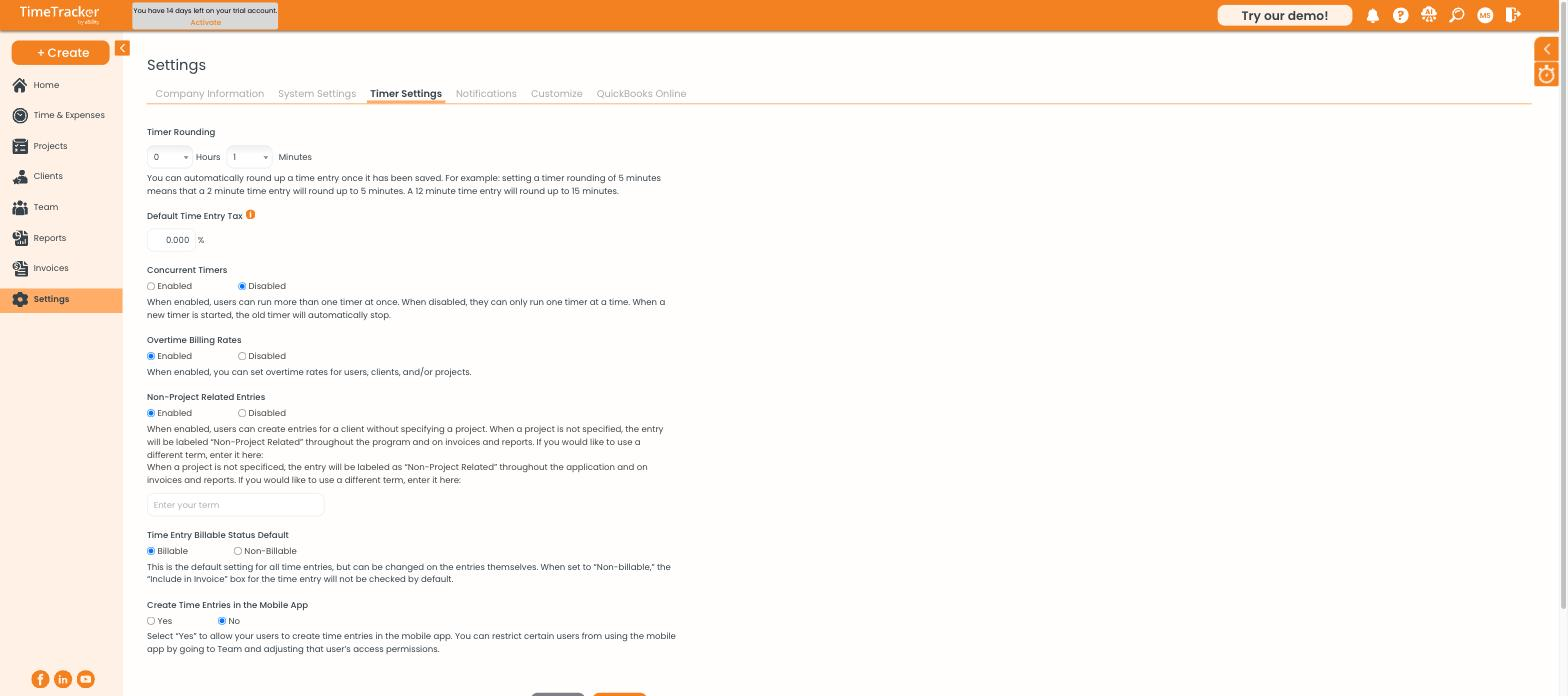
Timer Settings: rounding, concurrent timers, overtime rates, and billable defaults.
- Timer Rounding — rounds entries up when saved. With 5-minute rounding, a 2-minute timer saves as 5 minutes. Applies from now on; it doesn't change existing entries.
- Default Time Entry Tax — a firm-wide tax percentage on time entries.
- Concurrent Timers — lets one person run several timers at once. Disabled by default.
- Overtime Billing Rates — enables overtime rate fields on users, clients, and projects.
- Non-Project Related Entries — allows time against a client with no project. Type your own term in the box below to rename the label everywhere.
- Time Entry Billable Status Default — whether the Bill checkbox starts ticked or unticked.
- Create Time Entries in the Mobile App — whether your team can log time from mobile.
Timesheet Appearance
Go to Settings > Customize > Timesheets:
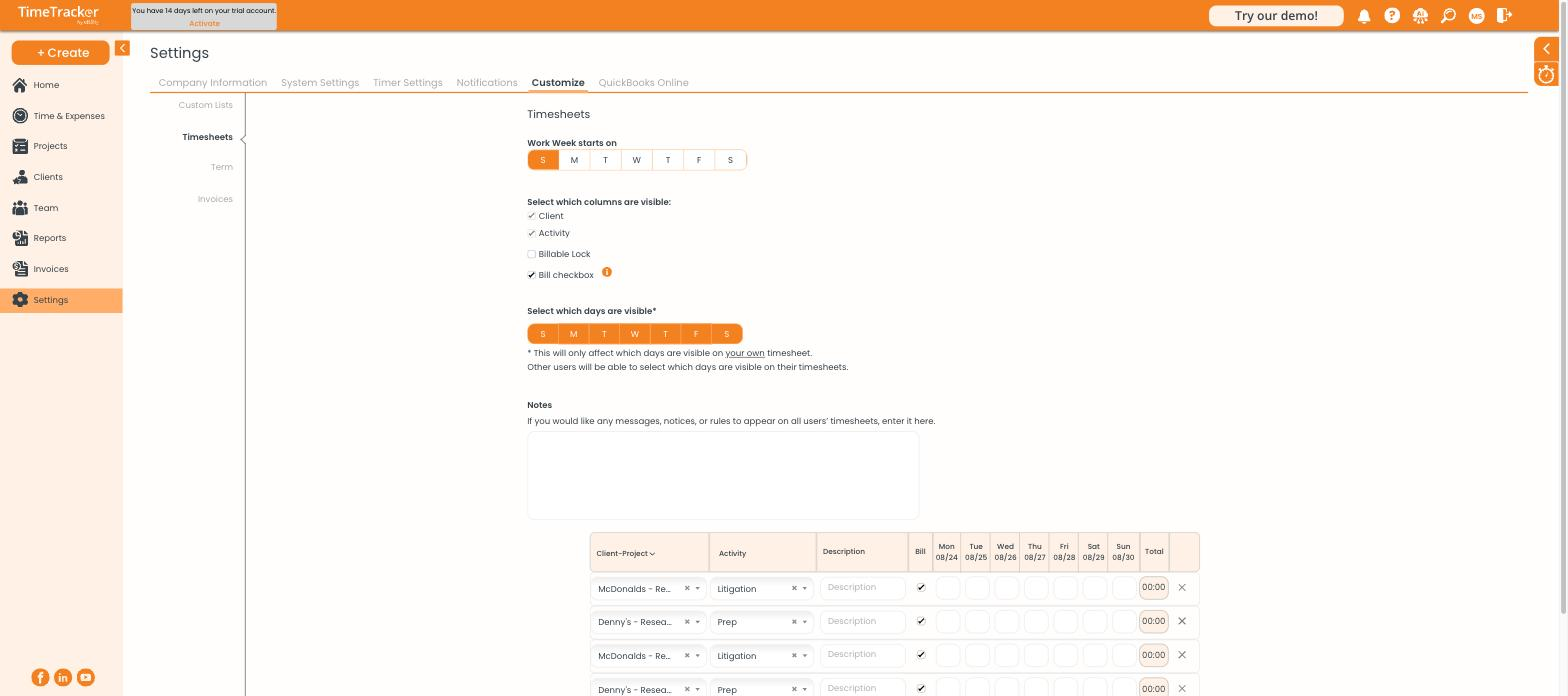
Timesheet options, with a live preview of the grid below.
- Work Week starts on — the grid's first day.
- Columns — show or hide Client, Activity, Billable Lock, and the Bill checkbox.
- Days — hide days nobody works. This affects your own timesheet only; each user picks their own visible days.
- Notes — a message shown on every user's timesheet, useful for deadline reminders.
A live preview under the settings shows each change before you save it.