
Applies to: Billing
If you need to record exactly when work started and ended — not just how long it took — use the daily timesheet. It shows one day at a time with From and To columns for each entry.
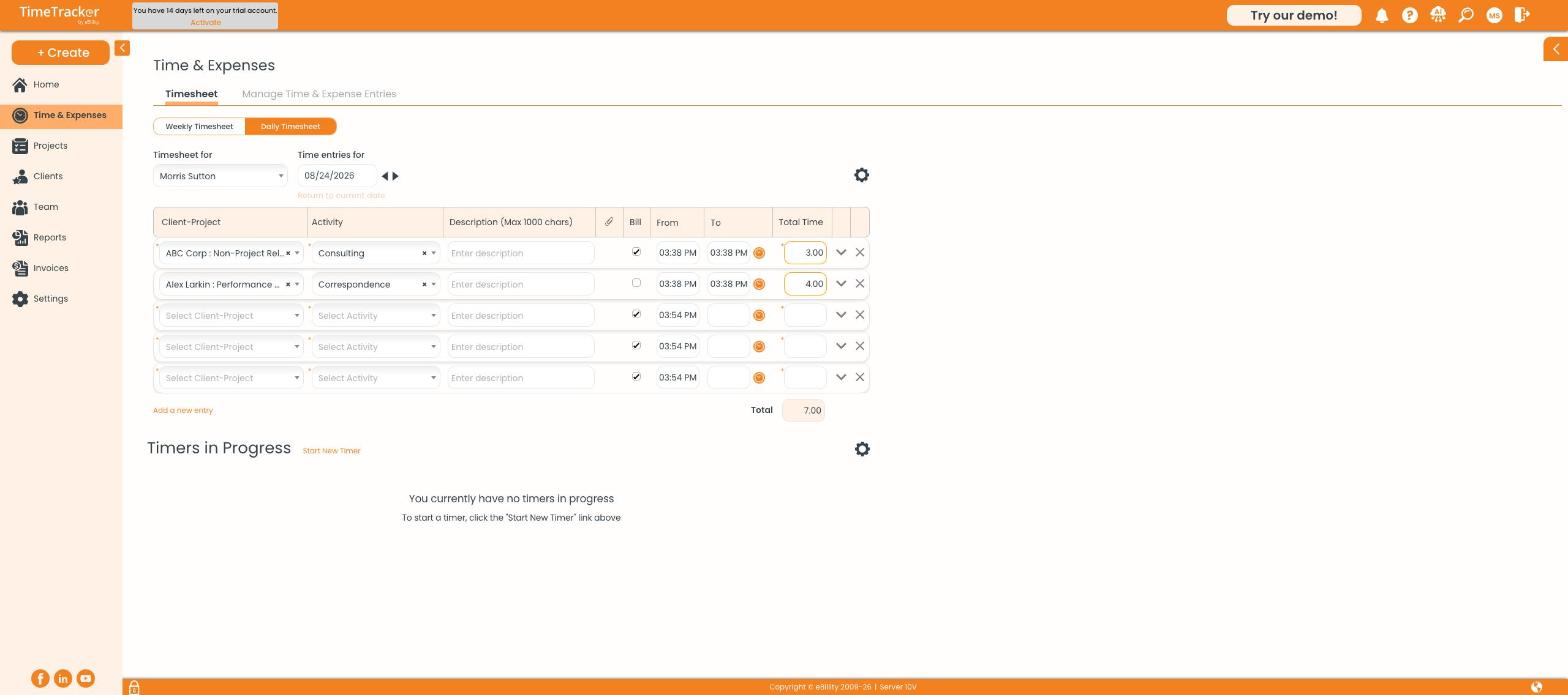
The daily timesheet shows one day, with From and To times and a Timers in Progress section beneath.
Adding an Entry
- Go to Time & Expenses and select Daily Timesheet at the top.
- Pick the Client-Project and Activity.
- Optionally add a description — it appears on the invoice.
- Enter the From and To times, or type the total directly into Total Time.
- Tick or untick Bill depending on whether the client is charged for this time.
Need more rows? Click Add a new entry. Use the arrows next to the date to move between days.
Timers in Progress
Any timer you're currently running appears in the Timers in Progress section below your entries. See "Using Timers" for how to start and save them.
Note: The daily and weekly timesheets are two views of the same data. An entry you add in one automatically appears in the other.