
Applies to: Billing
When you work on the same clients and projects through the week, entering time day by day is slow. The weekly timesheet puts the whole week on one screen — one row per client and project, one column per day — so you can fill in your hours in a single pass.
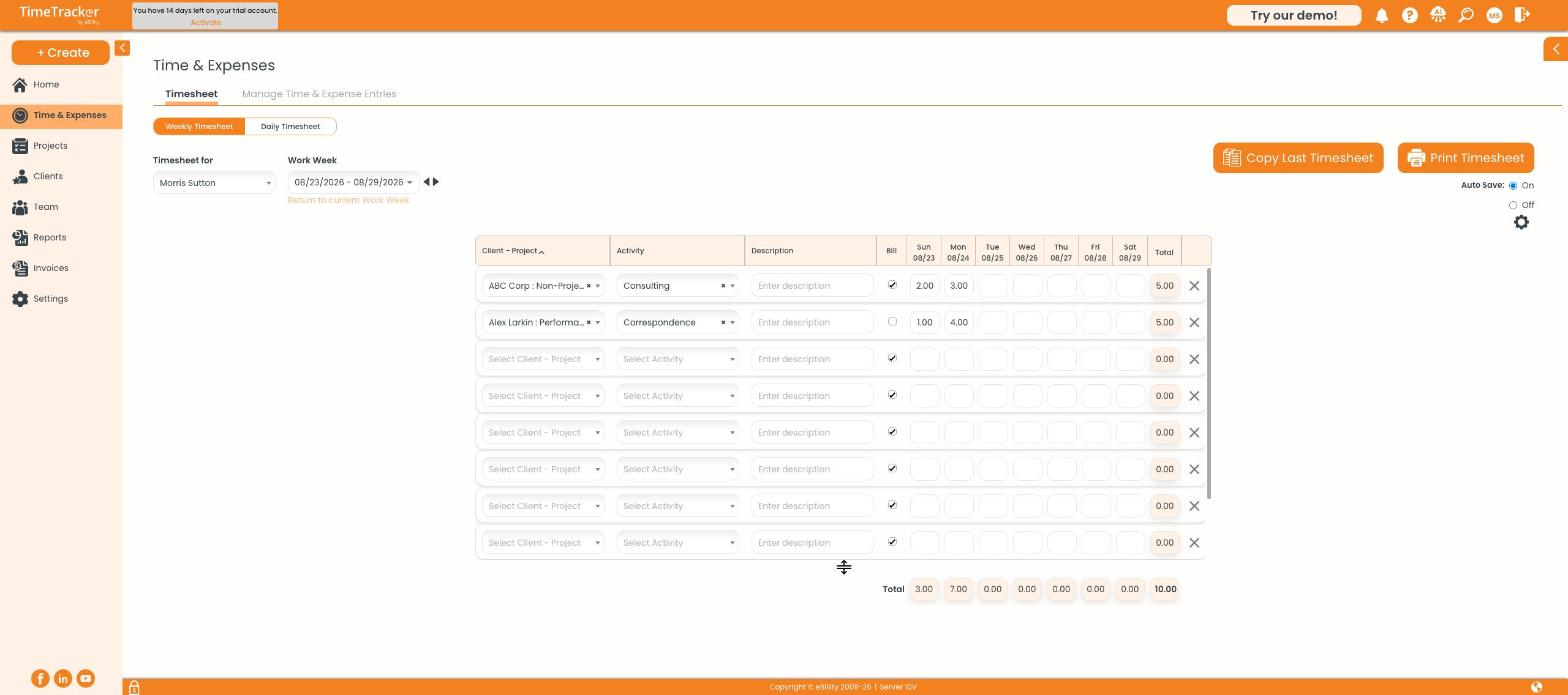
The weekly timesheet grid, with one row per client-project and one column per day.
Entering Your Hours
- Go to Time & Expenses and make sure Weekly Timesheet is selected at the top.
- On an empty row, click Select Client - Project and choose from the list.
- Choose an Activity (the type of work, such as Consulting or Design).
- Optionally type a Description — this text appears on the invoice.
- Leave the Bill checkbox ticked if the time is billable to the client.
- Type your hours into the day columns as decimals (2.5 = two and a half hours).
Your row total updates as you type, and the totals bar at the bottom shows each day's total plus the week's grand total.
Auto Save
The Auto Save toggle in the top right is On by default, so entries save as you type. Switch it to Off if you prefer to review the week before saving manually.
Copying Last Week's Timesheet
If this week looks like last week, click Copy Last Timesheet. Your client-project rows, activities, and billable settings carry over — you just fill in the new hours.
Printing
Click Print Timesheet for a clean printable copy of the week — useful when a client wants a signed record of hours.