
Applies to: Workforce · Premium · LawBillity
Your firm name, address, phone number, and logo appear on every invoice, report, and Client Portal page that leaves Time Tracker. Keeping this information current ensures your client-facing documents always look professional and accurate.
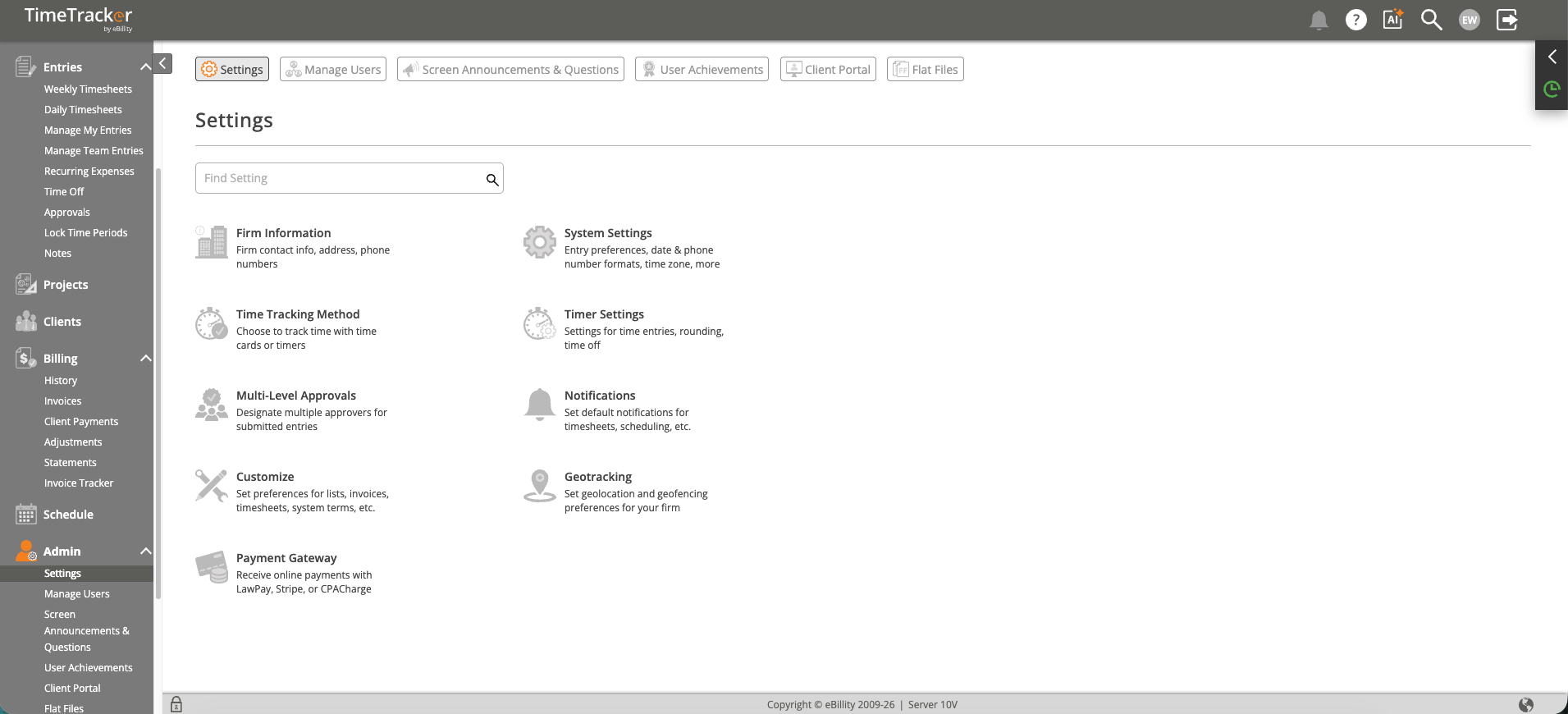
The Admin Settings hub provides access to all configuration options organized by category.
How to Update
- In the left menu, click Admin > Settings.
- Select Firm Information from the settings menu.
- Update your company name, address, phone number, and website as needed.
- Click Save to apply your changes.
The logo on your invoices is set separately, under Settings > Customize > Invoice Setup. See Setting Up Your Invoices: Logo, Template, Late Fees, and Discounts.
Also on This Page
- Time Tracker Plan shows your plan. Click Manage Subscription to change it. See Managing Your Subscription.
- Export all data for your firm downloads a copy of all your data. See Exporting All of Your Firm's Data.
Where This Information Appears
- Invoices — Your firm name, address, and logo appear in the invoice header.
- Client Portal — Your logo and brand appear when clients log in.
- Reports — Exported and printed reports include your firm name in the header.
- Client Statements — Your firm details appear on statements sent to clients.
Tip: If your firm recently rebranded or moved offices, update this page before sending out the next round of invoices. Old invoices retain the information from when they were created, but all new invoices will use the updated details.