
Applies to: Billing
You don't have to navigate to the right page every time you want to add something. The orange + Create button at the top of the sidebar works from anywhere in Time Tracker Billing.
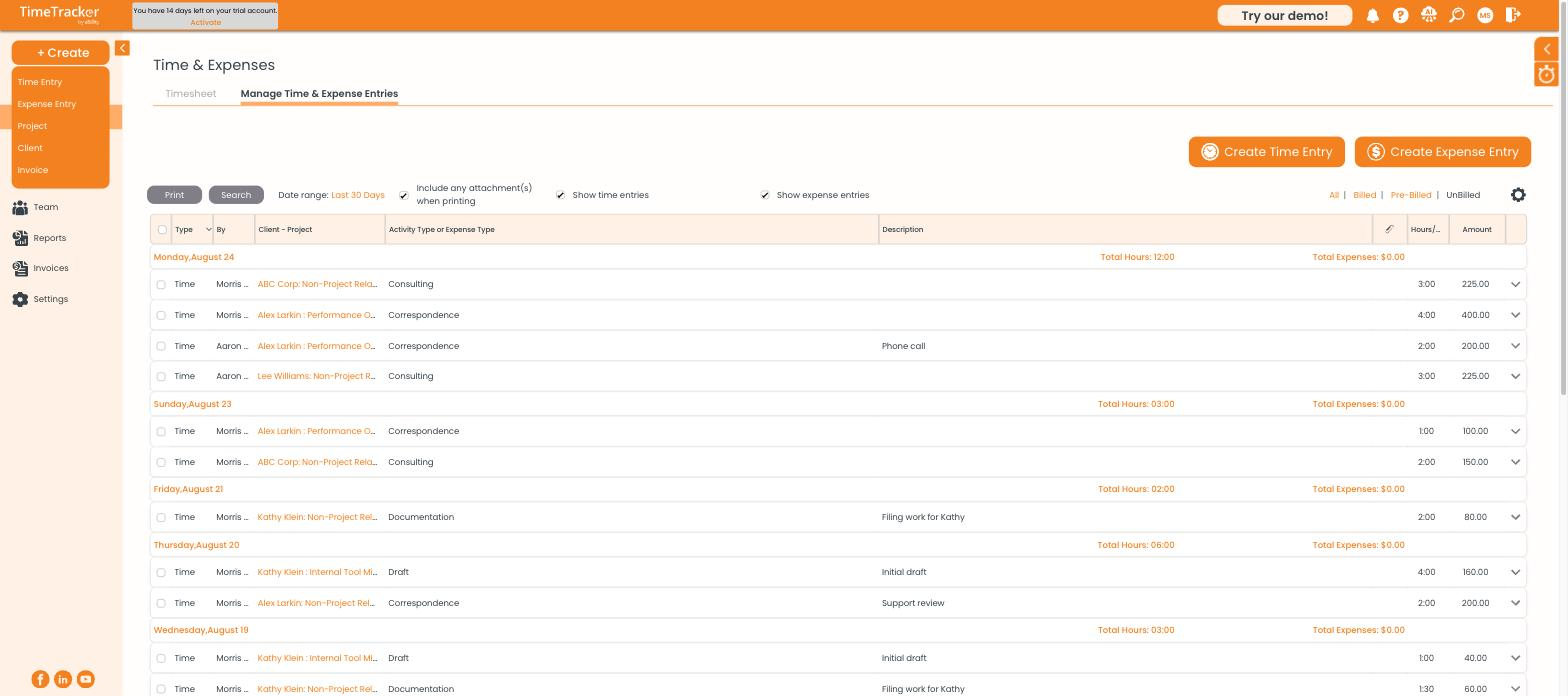
The + Create menu offers five shortcuts: Time Entry, Expense Entry, Project, Client, and Invoice.
Creating Something from Any Page
- Click + Create at the top of the sidebar.
- Choose what you want to create: Time Entry, Expense Entry, Project, Client, or Invoice.
- Fill in the form and save.
If Nothing Happens When You Click
Time Entry and Expense Entry open in a separate browser window rather than on the current page. If clicking them appears to do nothing, your browser has most likely blocked the pop-up:
- Look for a blocked-pop-up icon at the right end of your browser's address bar.
- Click it and choose to always allow pop-ups from secure.ebillity.com.
- Click the + Create option again.
Tip: For entering a full week of work, the weekly timesheet is faster than + Create because it keeps your client and project selections in place across all seven days. See "Tracking Time on the Weekly Timesheet."