
Applies to: Billing
Instead of trying to remember at 5pm how long that morning call ran, start a timer when you begin working and save it when you're done. The elapsed time lands on your timesheet as a normal entry.
Starting a Timer
- Go to Time & Expenses and select Daily Timesheet.
- Click Start New Timer next to the "Timers in Progress" heading. The clock starts immediately.
- Choose the Client-Project and Activity — you can do this while the timer runs.
- Add a description so you remember what the time was for.
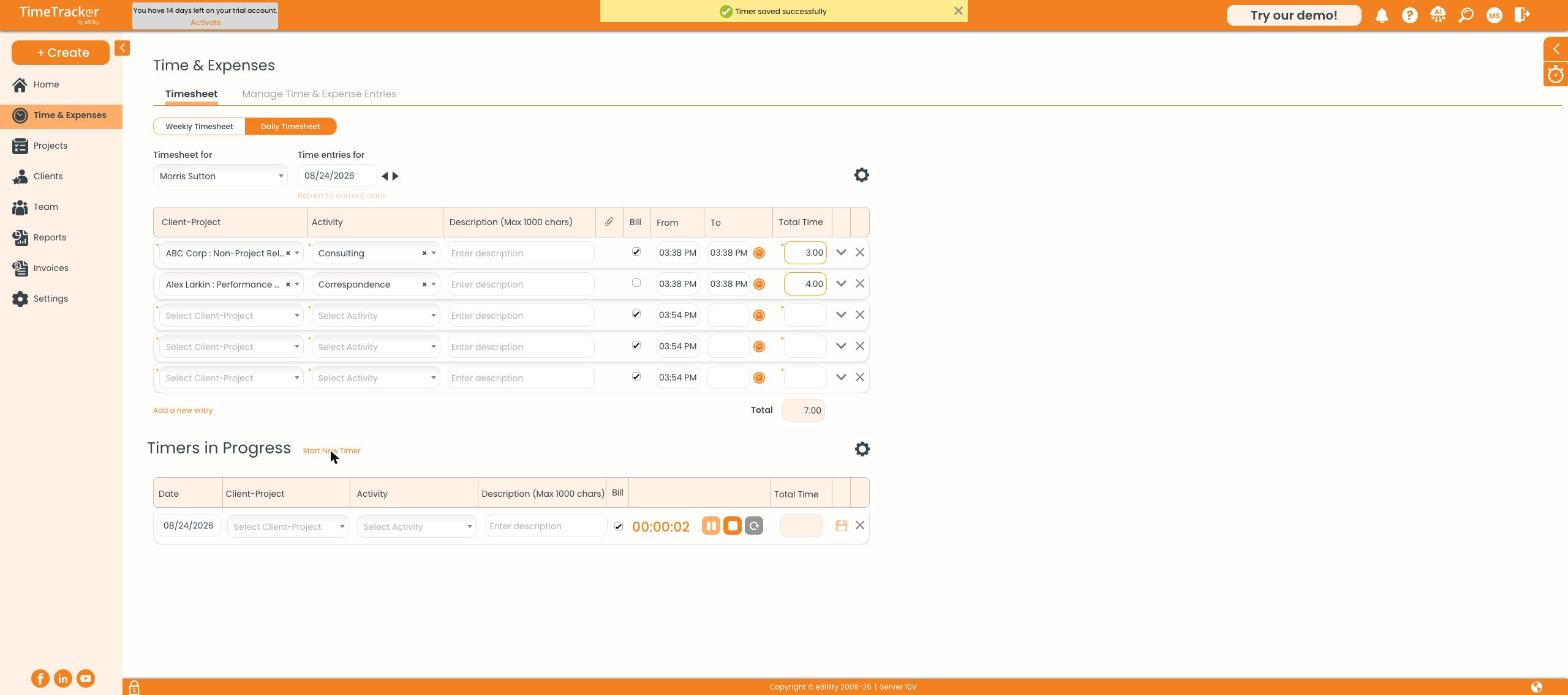
A new timer starts counting the moment you click Start New Timer.
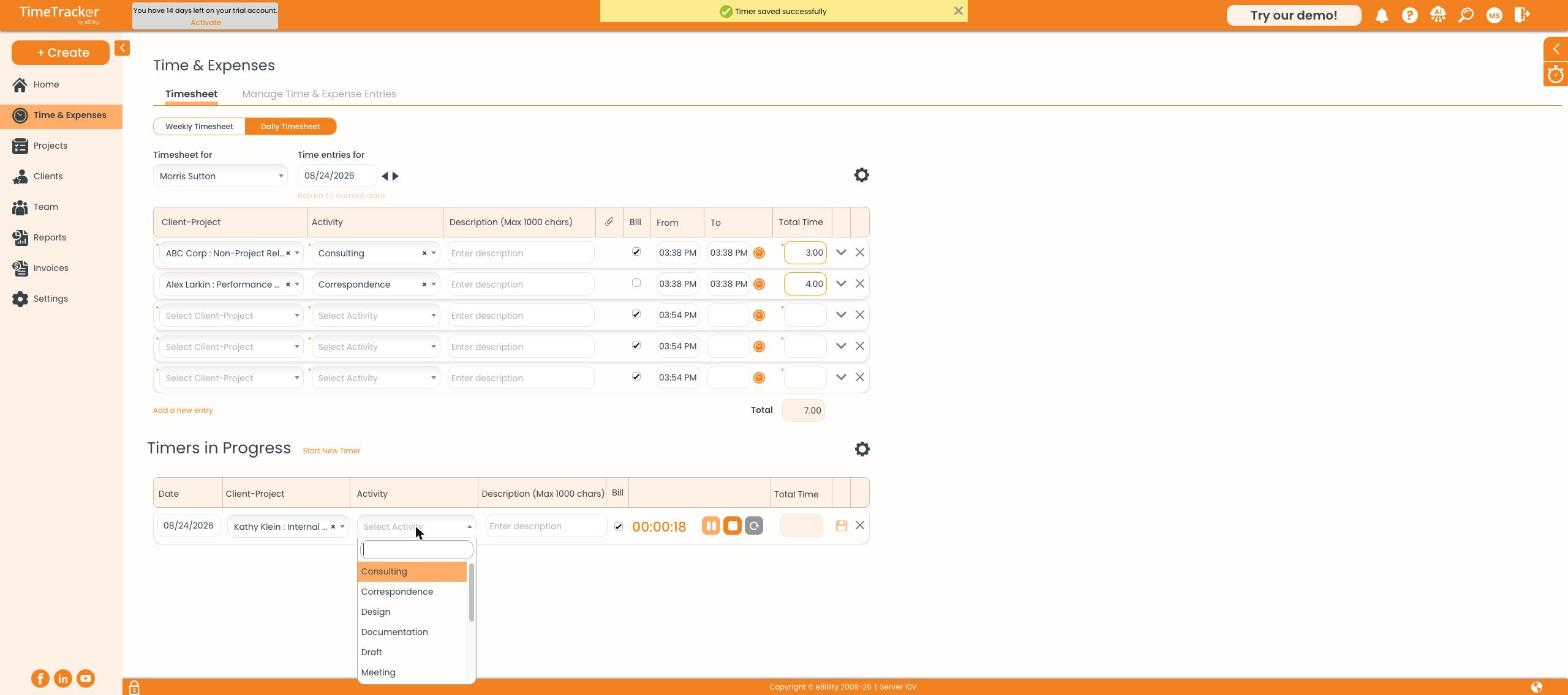
Choosing the activity while the timer keeps running.
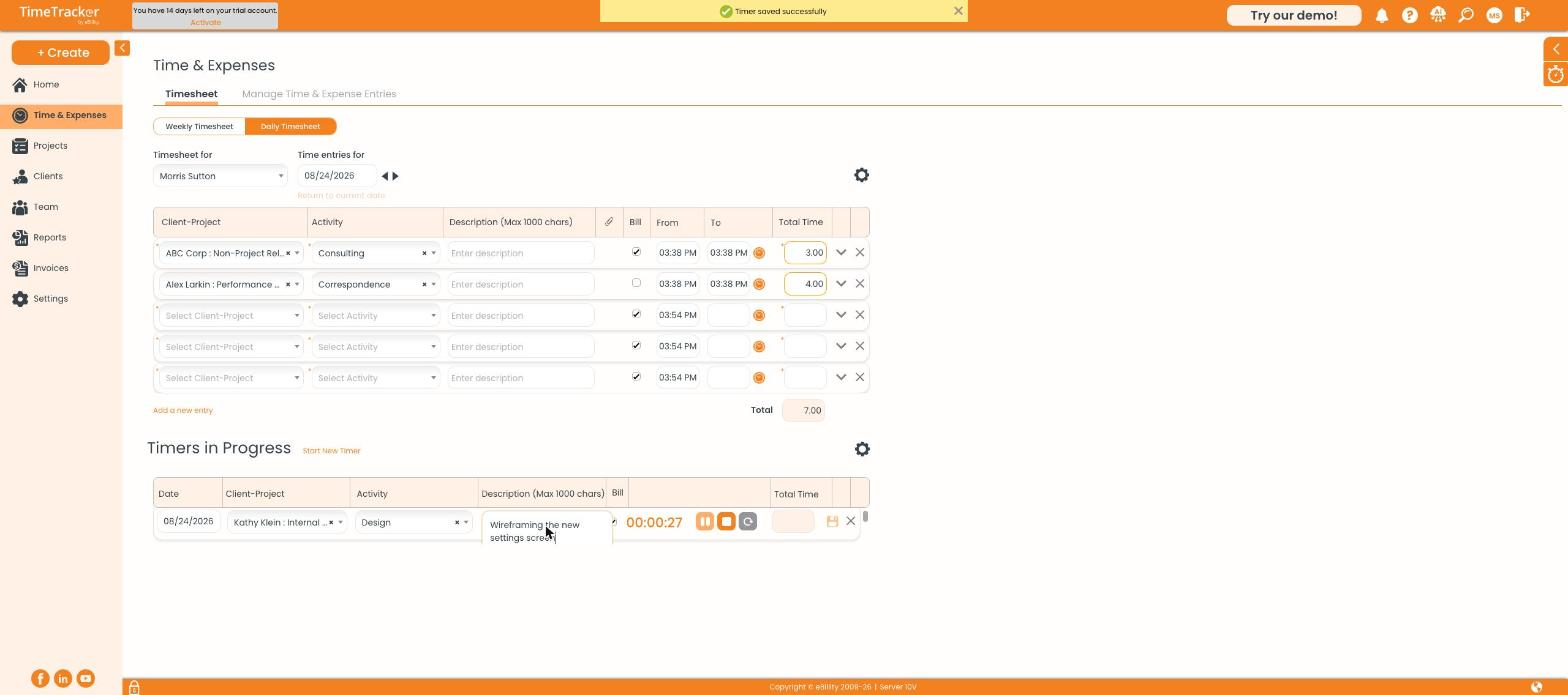
A running timer with the client, project, activity, and description filled in.
Controlling the Timer

The pause, stop, and reset buttons sit beside the running clock, with a save icon to the right.
- Pause holds the clock; click again to resume.
- Stop ends the session and keeps the elapsed time.
- Reset returns the clock to zero and discards the time.
- Save (the disk icon) writes the time to your timesheet as an entry.
Running More Than One Timer
By default, starting a new timer stops the one already running. If your team needs several timers at once, an administrator can enable this at Settings > Timer Settings > Concurrent Timers.
Timer Rounding
If your firm has rounding set at Settings > Timer Settings, the entry is rounded up when you save it. For example, with 5-minute rounding, a 2-minute timer saves as 5 minutes and a 12-minute timer saves as 15.