
Applies to: Premium · LawBillity
If your team logs expenses, an admin or manager approves them before they're billed or reimbursed.
Approving Expenses
- In the left menu, click Entries > Manage Team Entries.
- Click the Expenses tab.
- At the top right, click Pending to see expenses waiting for approval. Use the date range or Find to look further back.
- Tick the expenses you want to approve and click Approve.
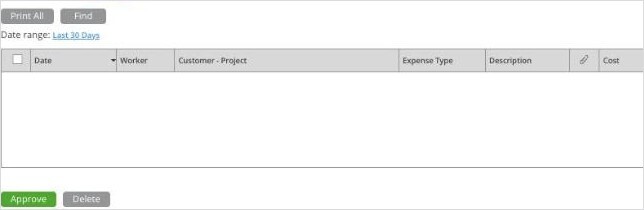
The Expenses tab of Manage Team Entries. The Pending, Approved, and Rejected filters are at the top right.
Click Approved or Rejected to see expenses that have already been reviewed. The paperclip column shows which expenses have receipts attached.
Auto-Approving Someone's Expenses
- Go to Admin > Manage Users, open the menu at the end of the user's row, and click Edit User.
- Under Enable auto-approval for Expense Entries?, choose Yes.
- Click Save & Close.
Their expenses are then approved as soon as they're entered. The same window has a separate setting for time entries and time off.
Users see their own expenses on the Expenses tab of Manage My Entries.
Note: Menu names follow your firm's own words. If your firm calls people Workers or Employees, you'll see
Manage Workers instead of
Manage Users, and
Customers instead of
Clients. See
Renaming Clients, Projects, and Other Terms (Term Settings).