
Applies to: Workforce · Premium · LawBillity
When a new team member joins, getting them into Time Tracker quickly means they can start tracking time from day one. The setup takes about a minute.
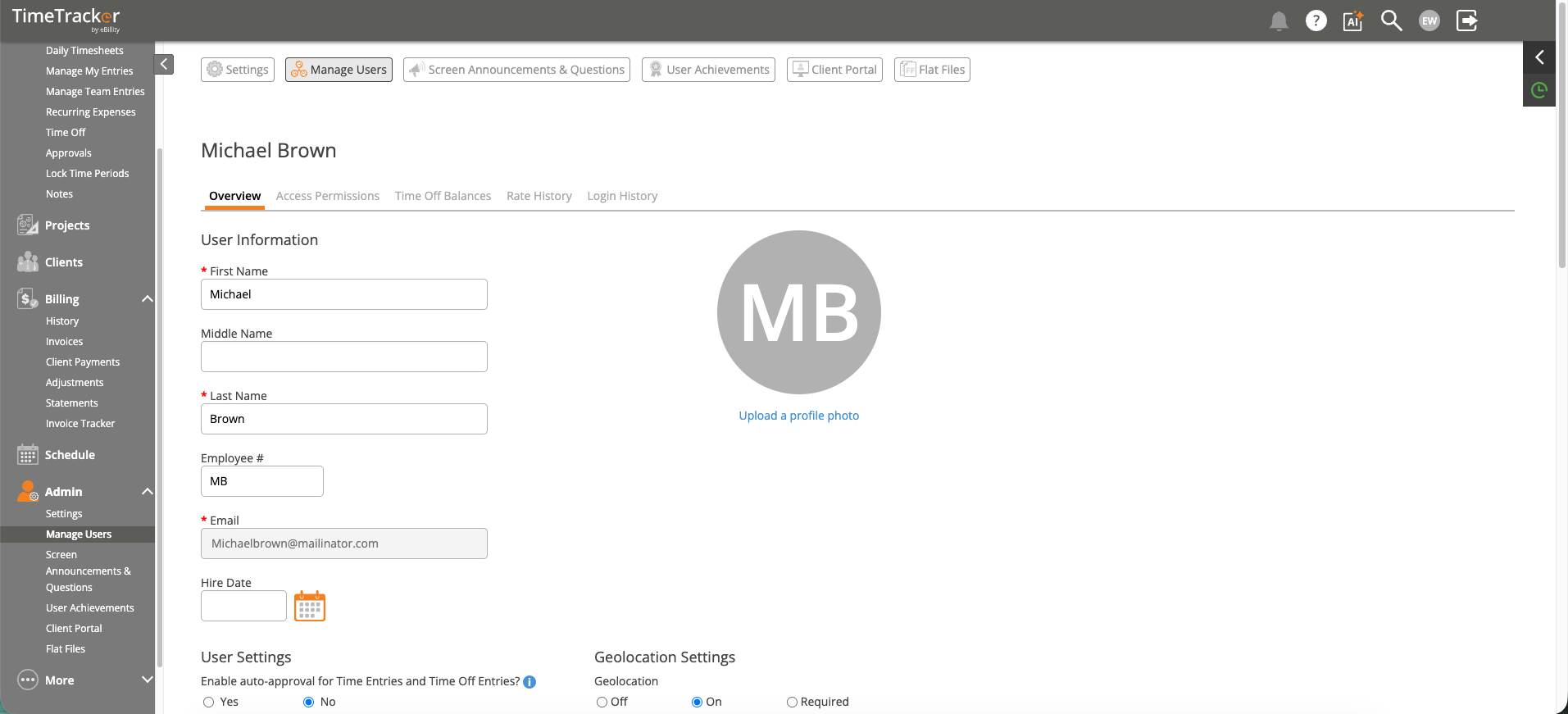
The User Profile page shows user details, settings, and configuration options.
Adding a New User
- Go to Admin > Manage Users (or use the Setup Wizard during initial setup).
- Click "Add User" or "Invite User".
- Enter the user's first name, last name, and email address.
- Assign a role: Super Admin, Admin, Manager, or Employee.
- Set their default hourly rate (prevents $0.00 invoices later).
- Click Save.
The user receives an invitation email with instructions to set up their password. They can log in as soon as they set their password.
Seats: Each person you invite uses one user seat. If all your seats are in use, add a seat first. See
Adding More Users: User Seats. To add many people at once, see
Importing Users, Clients, and Projects from a Spreadsheet.
What to Configure After Adding
- User Group — Assign them to a department or team for filtered reporting.
- Project Access — If any projects are restricted to specific users, add the new user to the relevant projects.
- Activity Groups — If you use Activity Groups, make sure the user's clients/projects have the right groups assigned so they see the correct activities.
Roles at a Glance
- Employee — Can enter their own time and expenses. Cannot see other users' data.
- Manager — Everything an employee can do, plus can view and approve team entries.
- Admin — Full access to settings, users, billing, and reports.
- Super Admin — Admin access plus account-level settings like subscription and billing.