
Applies to: Workforce · Premium · LawBillity
Instead of adding people, clients, or projects one at a time, fill in a spreadsheet and upload it. Each list has its own template.
Where to Find It
On each page, click Import from CSV, just below the Add button at the top right.
Importing
- Click Import from CSV.
- Click Download spreadsheet to get the template. Leave Include examples ticked if you'd like sample rows to follow. They won't be imported.
- Fill in one row for each user, client, or project. Fill in every required column.
- Save the file as a .csv file. In Excel, Numbers, or Google Sheets, use Save As, Export, or Download and choose CSV.
- Back in Time Tracker, click Next, then Choose File and pick your file.
- Click Upload.
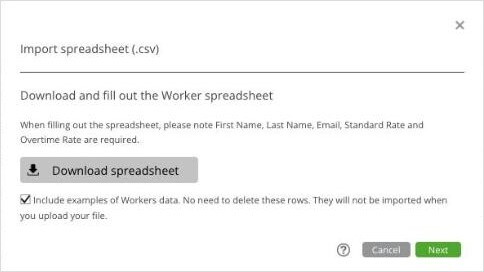
Step 1: download the template. The required columns are listed above the button.
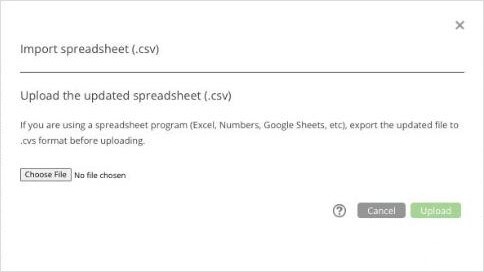
Step 2: choose your saved .csv file and click Upload.
Tips
- Import clients before projects. Each project row names its client, so the client needs to exist first.
- Spell client names exactly as they appear in Time Tracker.
- If you use QuickBooks, Xero, or another accounting integration, your clients and projects usually come in when you sync, so you may not need to import them.
- Each user you add will need a seat. See Adding More Users: User Seats.
Note: Menu names follow your firm's own words. If your firm calls people Workers or Employees, you'll see
Manage Workers instead of
Manage Users, and
Customers instead of
Clients. See
Renaming Clients, Projects, and Other Terms (Term Settings).