
Applies to: Workforce · Premium · LawBillity
Each user's Access Permissions decide which parts of Time Tracker they can use and whose information they can see. Use them to let a manager see only their own team, or to keep a user to the clients and projects they work on.
Getting There
- In the left menu, click Admin > Manage Users.
- Click the menu (three lines) at the end of the user's row.
- Click Edit User, then the Access Permissions tab. (Choosing Access Permissions from the menu opens the same tab to view.)
- Make your changes and click Save & Close.
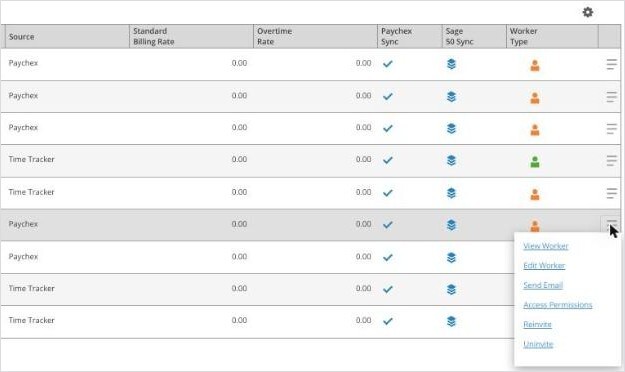
The menu at the end of each user's row.
Note: Menu names follow your firm's own words. If your firm calls people Workers or Employees, you'll see
Manage Workers instead of
Manage Users, and
Customers instead of
Clients. See
Renaming Clients, Projects, and Other Terms (Term Settings).
User Type and Permission Group
- User type: Admin, Manager, or a regular user. See Understanding User Roles.
- Group: a group decides which parts of the program the user can use. Each group sets View and Manage rights for Project Management, Customer Management, Invoicing, and Accounting, plus View for Financial Rights. Pick a group from the list, or click Add new user group to make one.
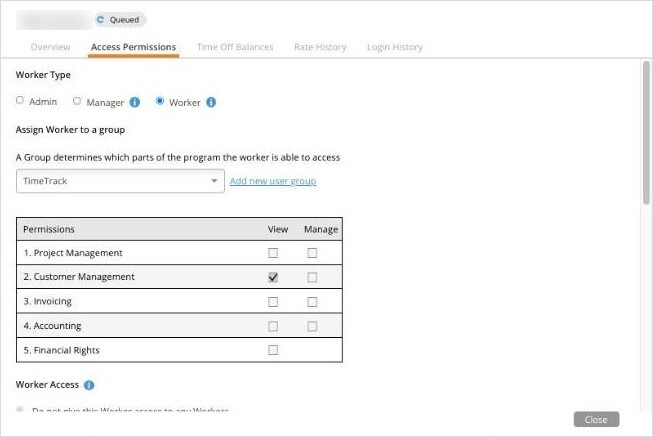
The top of the Access Permissions tab: user type, group, and the group's permissions.
Access to People and Data
For each of these, choose none, ALL, or SOME. Choosing SOME lets you pick exactly which ones.
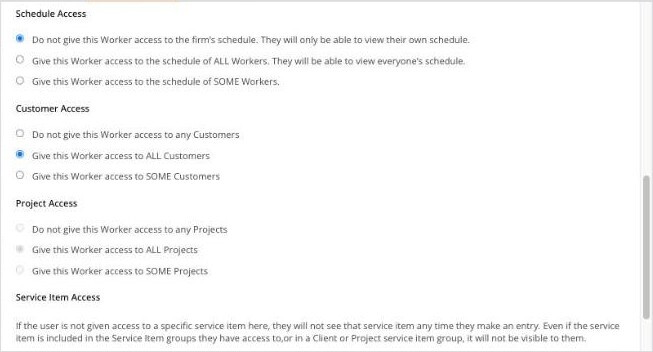
Schedule, Customer, and Project Access.
Tip: If someone can't find a client, project, or service item when entering time, check these settings first. See
Why Can't I See Certain Clients, Projects, or Activities?.